


Copart is one of the largest online vehicle auction platforms, giving buyers access to thousands of cars, trucks, SUVs, and other vehicles from the United States. For international buyers such as Africans, it is a popular place to source vehicles that may not be readily available in their local markets.
But before you can start bidding, you need to set up your Copart account, choose the right membership, and submit the documents required for your account to be approved.
The process is straightforward, but there are a few decisions you need to get right. For example, you can register as an individual or as a business, and the documents you need will depend on which option you choose. Your membership type also affects your buying power, while the license requirements of a particular vehicle determine whether you can bid on it.
This guide walks you through how to open a Copart account, what to select at each stage, and which documents you need to prepare to be able to buy cars from Copart.
Individual or Business: Which Copart Account Should You Open?
An individual account works well if you are buying a car for personal use or are just starting out and do not have a registered vehicle-import or dealership business.
A business account is more suitable if you buy vehicles for resale, operate an auto dealership, or need to bid on vehicles that have business-license requirements.
Your membership does not automatically give you access to every vehicle on Copart. Some vehicles have licensing requirements attached to them. If you do not have the required license, you may need to use a broker or choose a vehicle that does not require one.
Once you know which route you are taking, you can begin the registration.
How to Open a Copart Account Step by Step
The registration process starts the same way whether you are registering as an individual or a business.
1. Register with Your Email
Head to Copart’s official website and click Register.
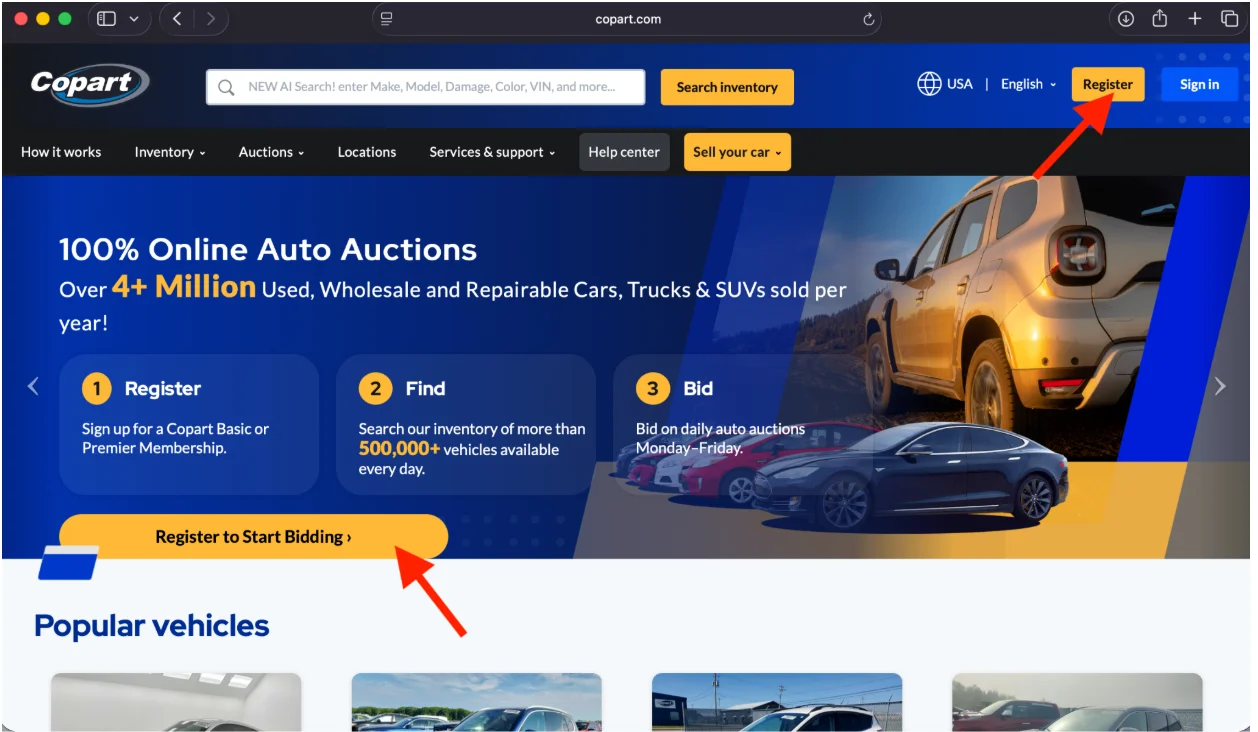
You’ll be asked for some basic information to get your account started:
- Your email address
- A password for your account
- Your phone number
Once you’ve filled these in, click Agree and Continue.
You will immediately receive an email asking you to verify your email address. Open the email and complete the verification. Once your email has been confirmed, select Continue to return to Copart and move on to the next part of the registration.
2. Choose a Membership Type
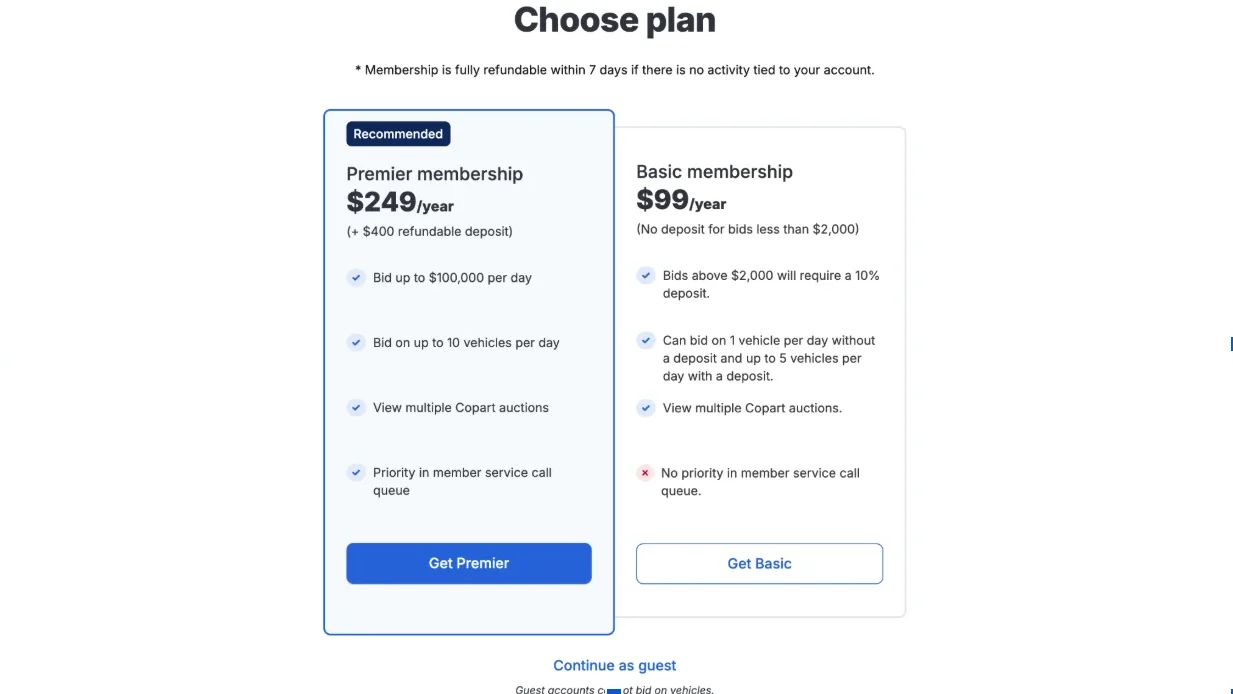
You have two paid membership options: Basic and Premier. The right choice depends mainly on how often you plan to buy and how much you expect to bid.
Basic Membership
Choose Basic if you expect to buy occasionally and do not need a high level of buying power. The basic membership currently costs $99 per year.
With Basic, you’re allowed up to $2,000 in buying power before a deposit is required. If you want to bid above that amount, you can increase your buying power by placing a refundable deposit.
Premier Membership
Choose Premier if you expect to buy more frequently or need significantly higher buying power.
Premier Membership currently costs $249 per year and requires a $400 fully refundable security deposit.
The deposit is separate from the membership fee. It is held as security and can be refunded as long as there are no outstanding invoices or other amounts owed on your account.
Premier provides substantially higher buying power and allows you to bid on multiple vehicles, making it more suitable for regular buyers.
What Happens If You Choose Guest?
You can choose to continue as a Guest if you are not ready to pay a membership fee. A Guest account allows you to browse vehicles and use certain basic features, but you cannot bid or purchase a vehicle as a Guest.
3. Select a Payment Method for the Member Fee
After selecting your membership, choose the available payment method you want to use. You may be able to pay using a credit or debit card, depending on the payment options presented to you.
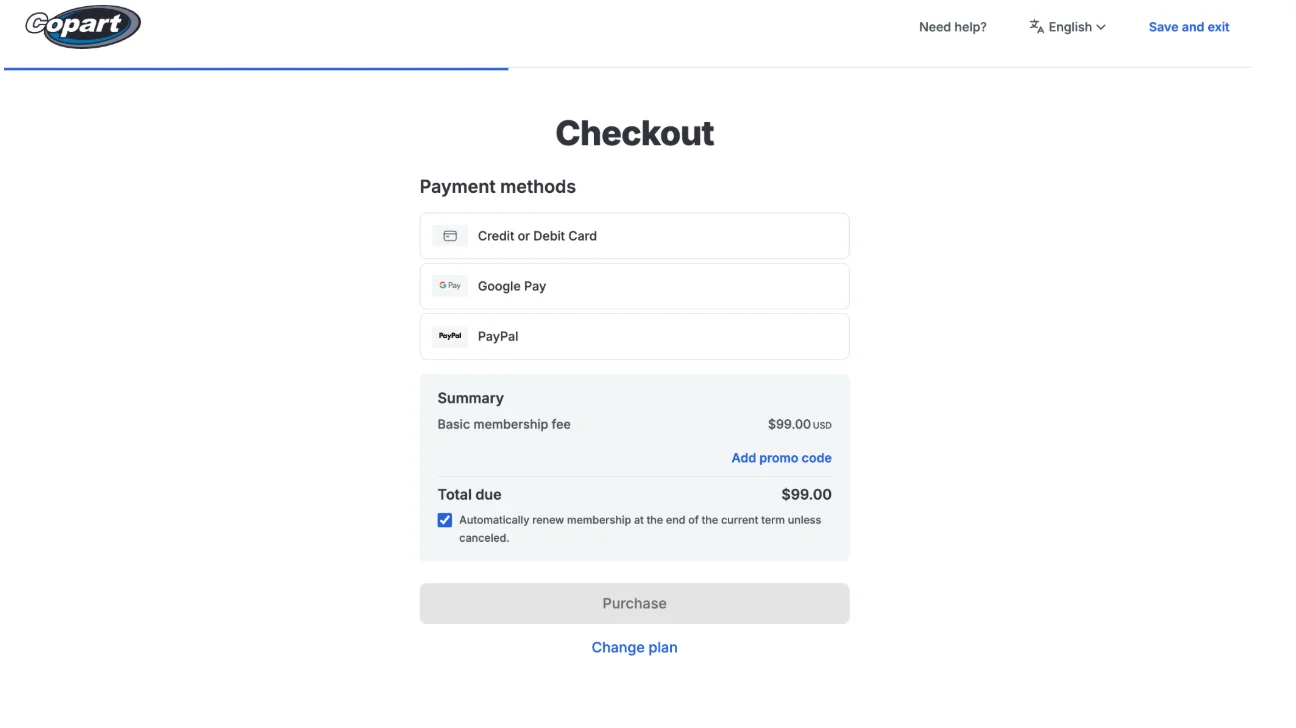
Enter your payment details and select Purchase to complete the membership payment.
Make sure the payment method you use can make the transaction successfully in the required currency and has sufficient funds available.
4. Complete Your Account Setup
Next, Copart will ask you to provide additional information about your account and what you intend to purchase.
You may be asked to select details such as:
- The type of vehicles you are interested in
- The type of title you are looking for
- Other information related to your intended purchases
This helps tailor your search results and alerts once your account goes live. Complete these fields accurately.
5. Upload Your Documents
The next step is to verify your identity.
Upload a government-issued photo ID, either:
- An international passport
- A driver’s license
- Or any other accepted government-issued ID
Before uploading your ID, check that it is valid and that all the details are clear and readable. Your name and other identifying information should also match the details you entered when creating the account.
If your ID is expired, unclear, or does not match your registration details, Copart may request another document before approving your account.
And if you’re registering as a business account, you’ll need to upload documents that verify your business or licensing status.
Documents required for a business account:
- A dealer, import/export licence, or any other valid business licence. This confirms your company is formally registered and legally allowed to trade.
- Your tax identification number or VAT certificate, issued by your country’s tax authority. For example, in Nigeria, this is the Federal Inland Revenue Service (FIRS). Every African country has its own equivalent body, so check with your local tax or revenue authority for the correct certificate. If your business isn’t eligible for VAT, you’ll need a letter from that authority confirming you don’t currently qualify.
- All Copart state forms, filled out in full.
6. Wait for Document Approval
Copart reviews your documents within 1 to 2 business days, excluding Saturdays, Sundays, and public holidays. You’ll get an email confirmation once your documents are processed and approved.
From there, you can start bidding. Once you win a vehicle, you’ll need to pay Copart within its payment window.
What If You Don’t Have a Business License?
You can still buy from Copart without a license. Look for vehicles marked No License Required when searching the inventory.
If the vehicle you want requires a business license and you do not have one, you can also use a Copart-approved broker to bid on your behalf. A broker can help you access vehicles that you would not be able to bid on directly because of their licensing requirements.
Frequently Asked Questions
Can I upgrade from Basic to Premier?
Yes, you can upgrade your Copart membership from your account’s settings.
Do I need a U.S address to register?
No. A U.S address only becomes relevant when you’re arranging pickup or shipping for a vehicle you’ve won. Most African buyers use a freight forwarder’s address for this.
What happens if my documents get rejected?
You’ll usually get a reason in the rejection notice, most commonly a name mismatch, a missing translation, or an expired document. Fix the issue and resubmit.