

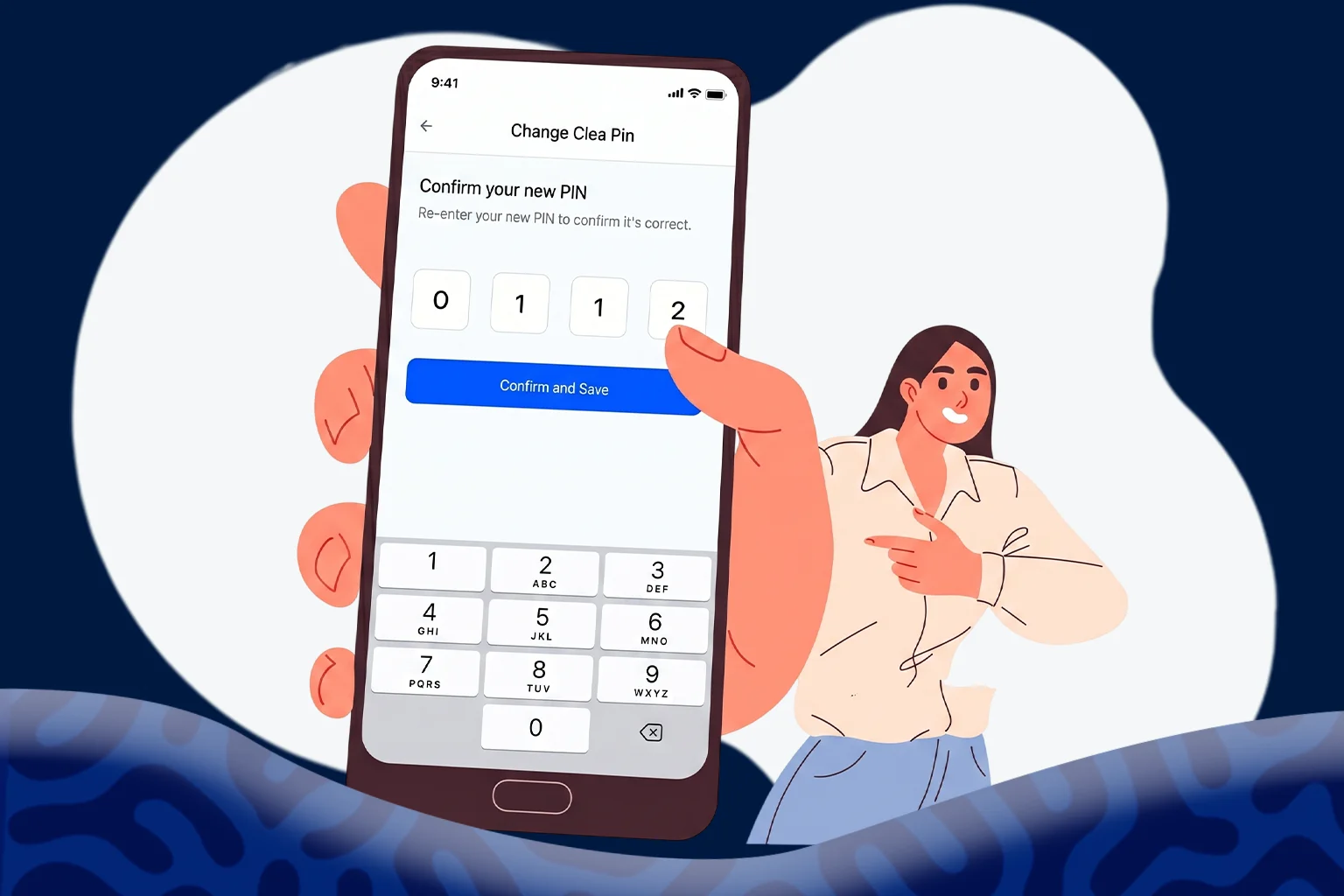
Your Clea transaction PIN is the four-digit code you enter to authorise payments on your account. Separate from the password you use to log in, it acts as a second checkpoint, confirming that the person approving a transfer is really you. Without it, you can’t complete any transaction on your account.
There are a few common reasons you might want to change yours. The most frequent is a forgotten or hard-to-recall PIN, often one set in a hurry when the account was first opened. Others change it for security: you may suspect someone caught a glimpse of it, or you have simply used the same code for too long and want a fresh one. Some people also like to update it after lending their phone to someone or noticing any activity they did not recognise. Whatever the case, replacing it is a sensible habit.
Updating your PIN is a quick, self-service process. This guide takes you through it step by step on both the Clea app and the web.
How to Change Your Transaction PIN on Clea App
If your transactions mostly happen on your phone, follow these steps.
- Open the Clea app. Make sure you are logged in to the account you want to update.
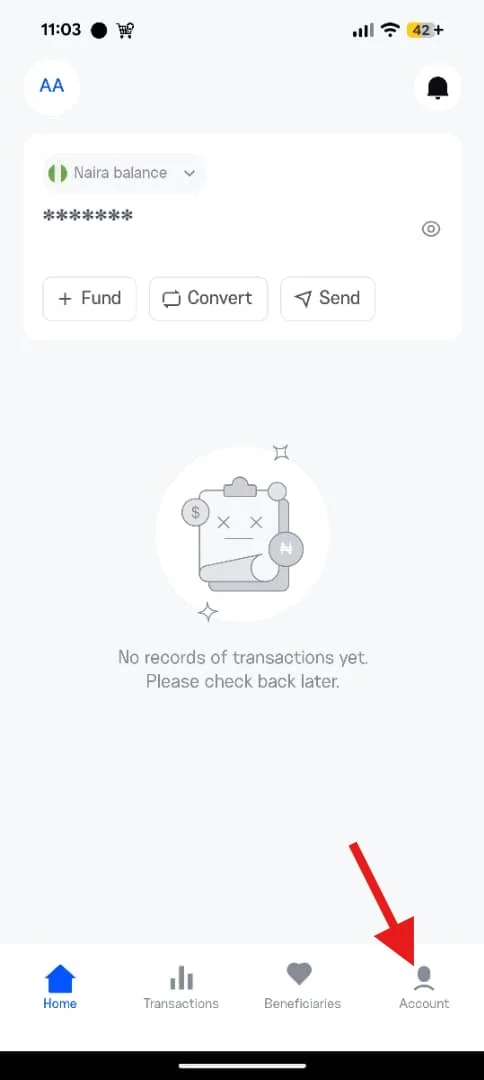
- Go to Account. This is where all your personal and security options live, so it is the starting point for any change like this.
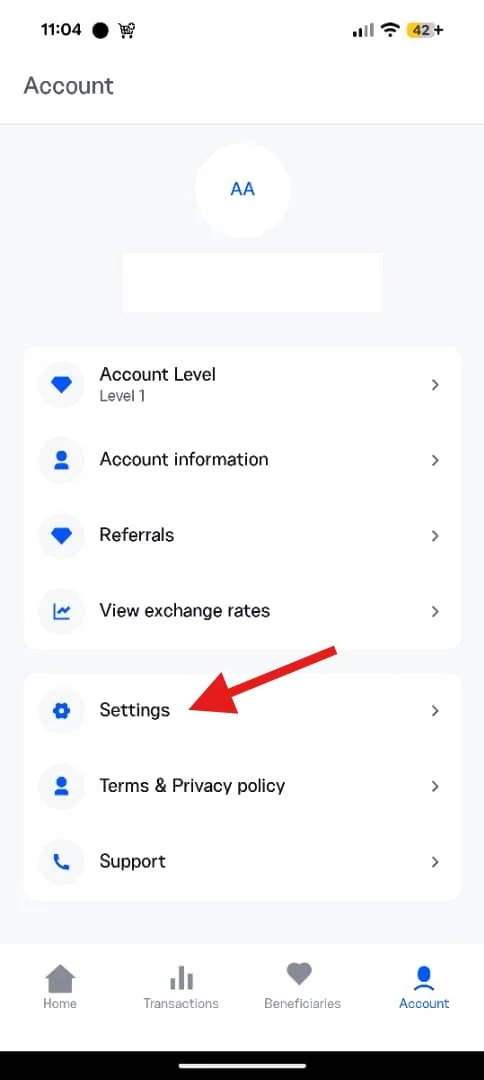
- Select Settings. You will find the security controls here.
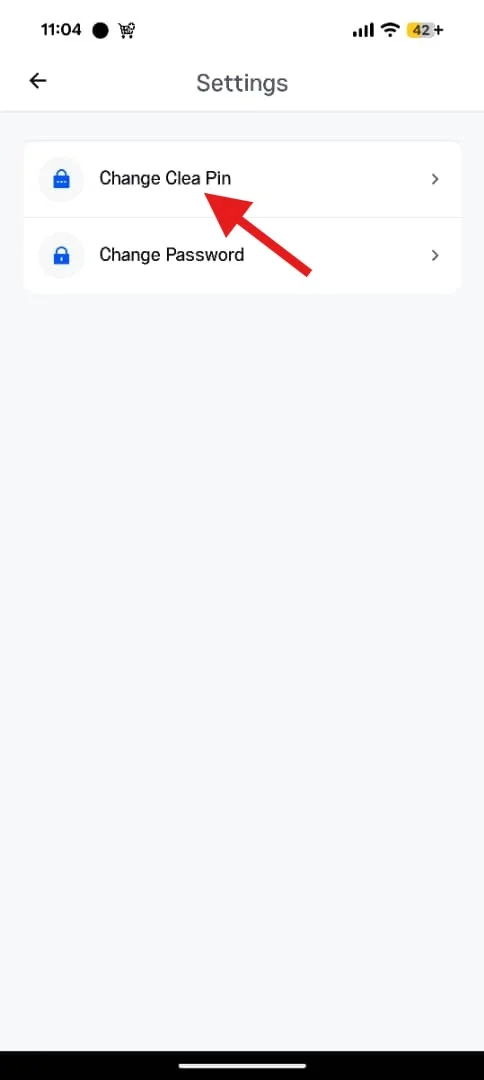
- Select Change Clea PIN. This is the option that begins the PIN update.
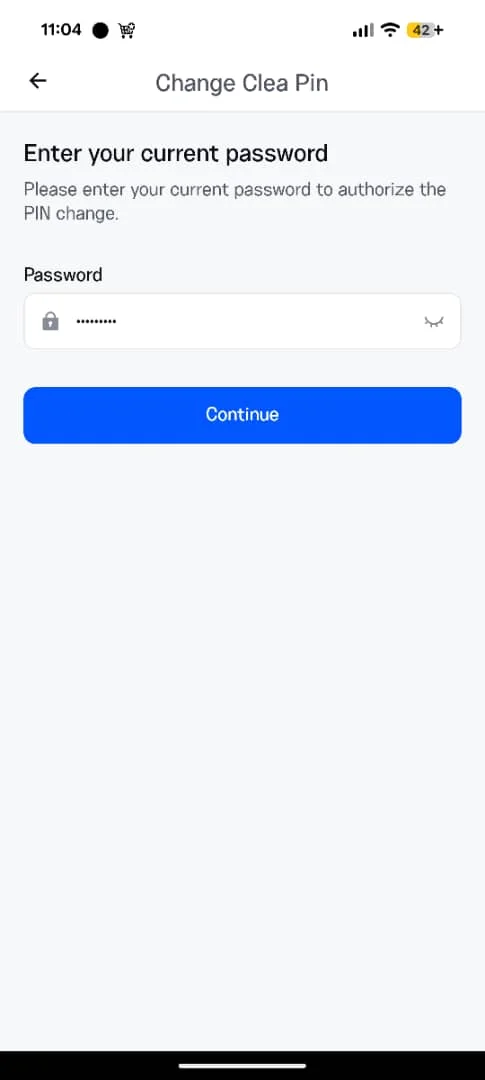
- Input your current account password and tap Continue. Provide your password first to confirm it is really you making the change. If the password does not go through, double-check that your caps lock is off and try again.
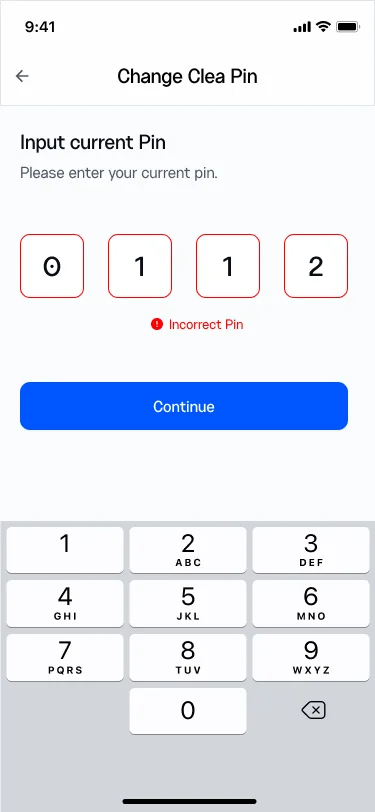
- Enter your current PIN, then tap Continue. This is the transaction PIN you have been using up to now.
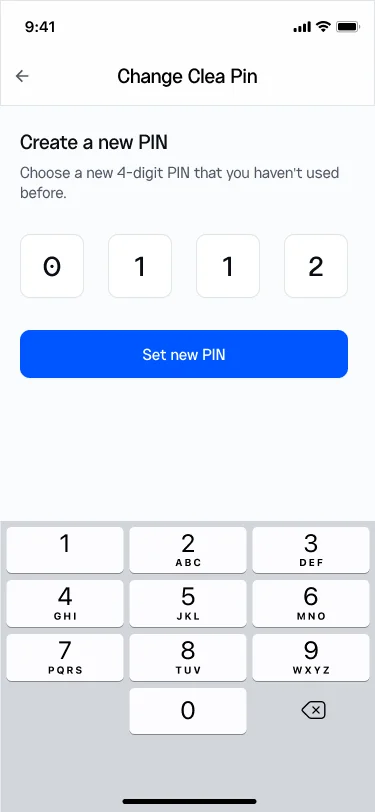
- Enter a new PIN and select Set New PIN. Choose a combination of digits you can always remember but that no one could easily guess. Avoid using the same digits as your old PIN.
- Re-enter the new pin to confirm it’s correct.
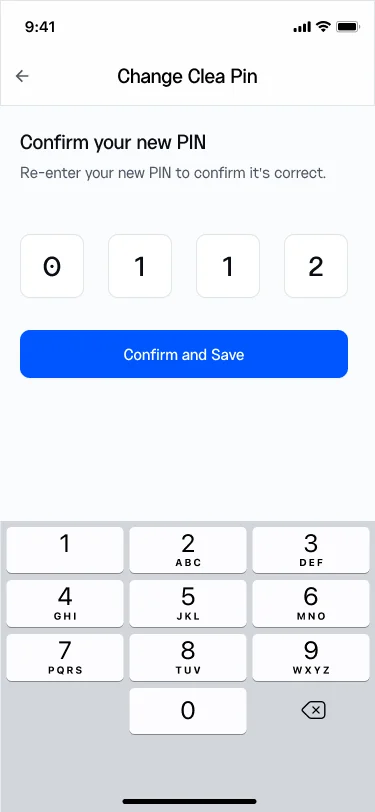
Once confirmed, your PIN is updated to the new one you just set, and it applies to your very next transaction.
How to Change Your Transaction PIN on the Web
If you prefer to work from a laptop or desktop, the process mirrors the app.
- Log in to your account. Use your usual email and password to get into your dashboard.
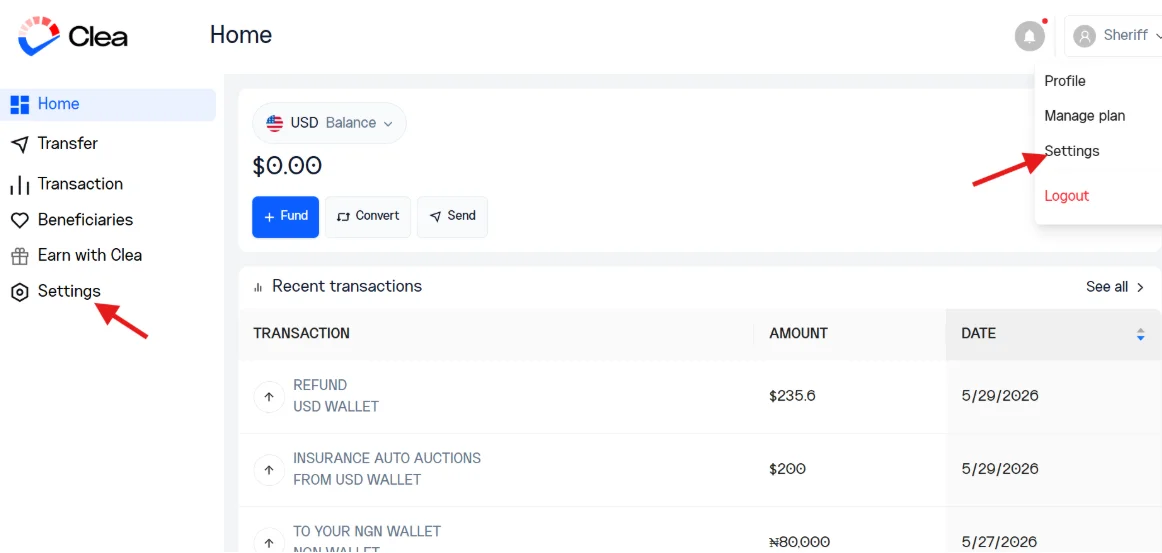
- Click Settings. You can reach it from the dropdown at the top right or from the menu on the left-hand side, depending on which is showing for you.
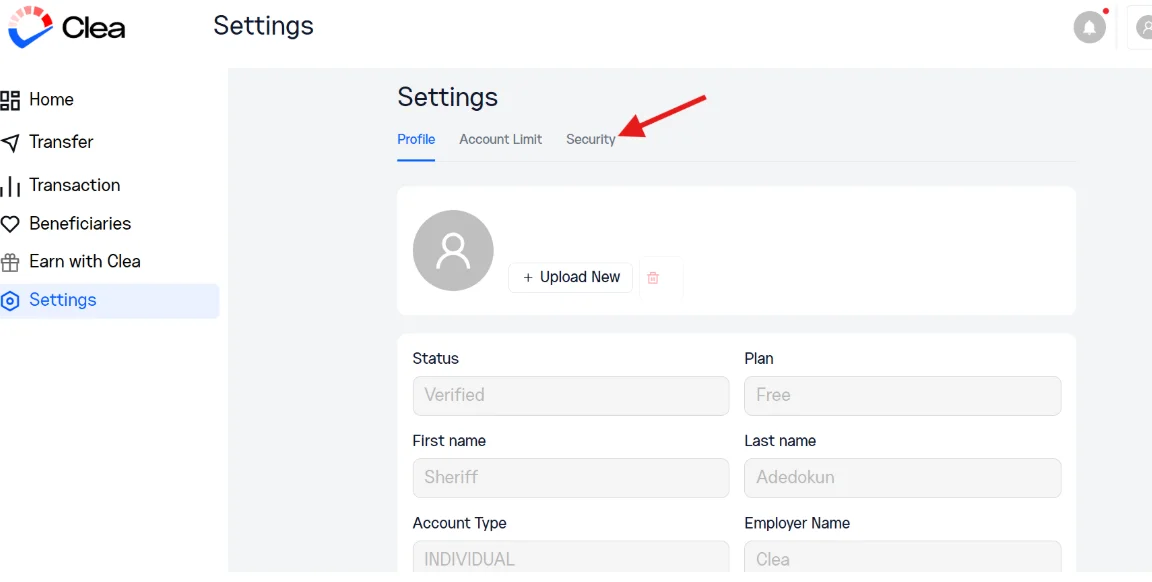
- Select Security. On the web, your PIN settings sit under the security section.
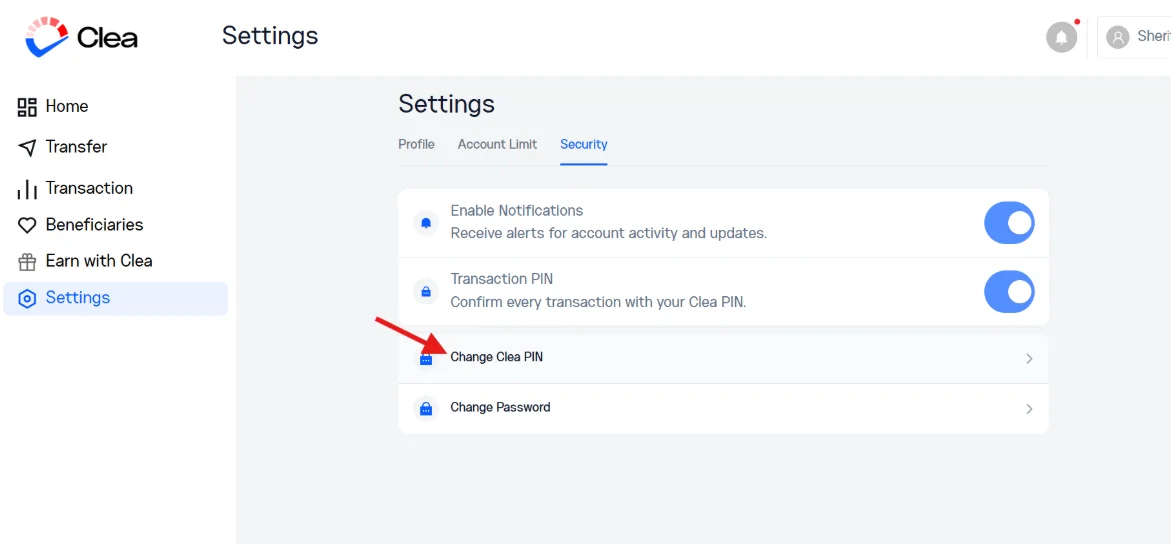
- Select Change Clea PIN. This opens the page for setting a new PIN.
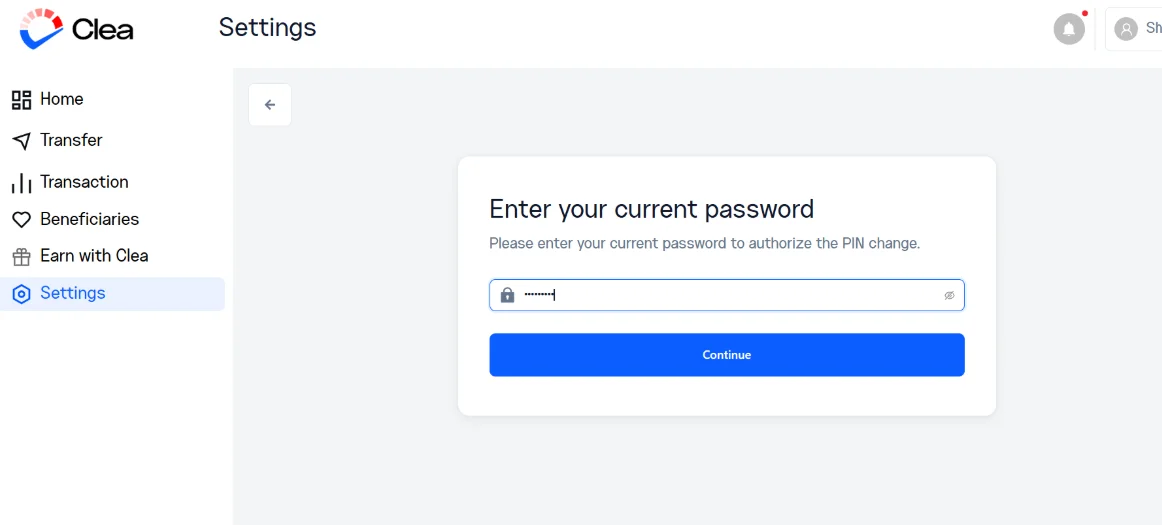
- Enter your account password and select Continue. As on the app, this confirms it is you before any change is made.
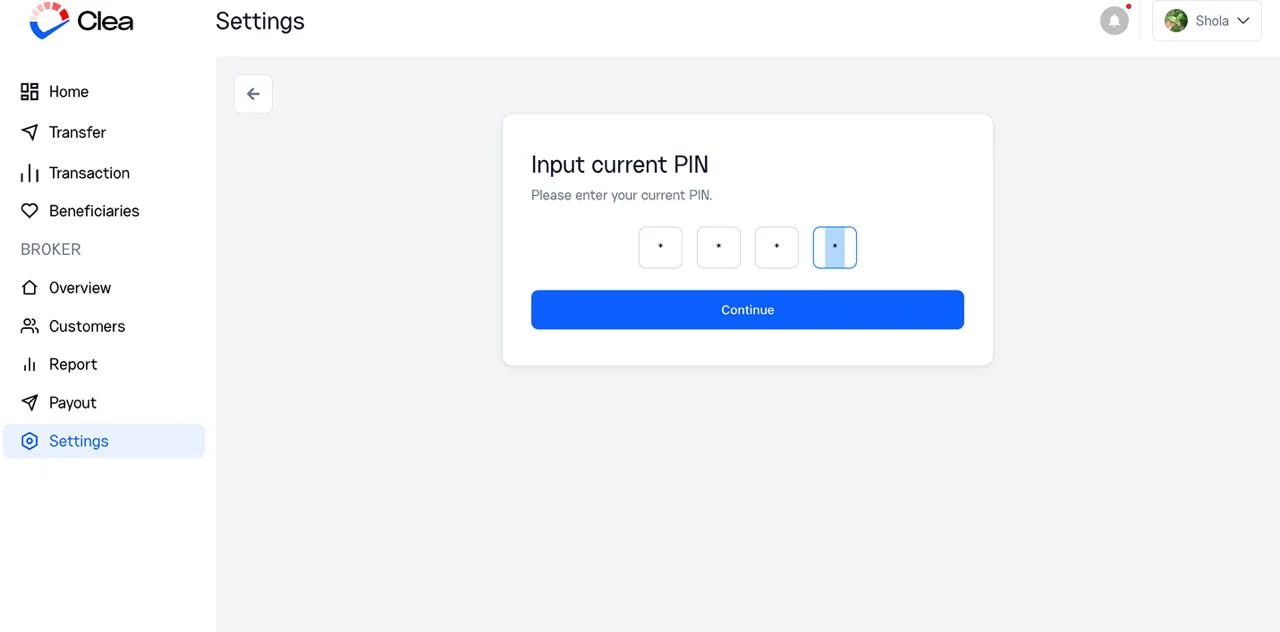
- Input the current PIN you use for transactions and click Continue. This is the PIN you have been approving payments with so far.
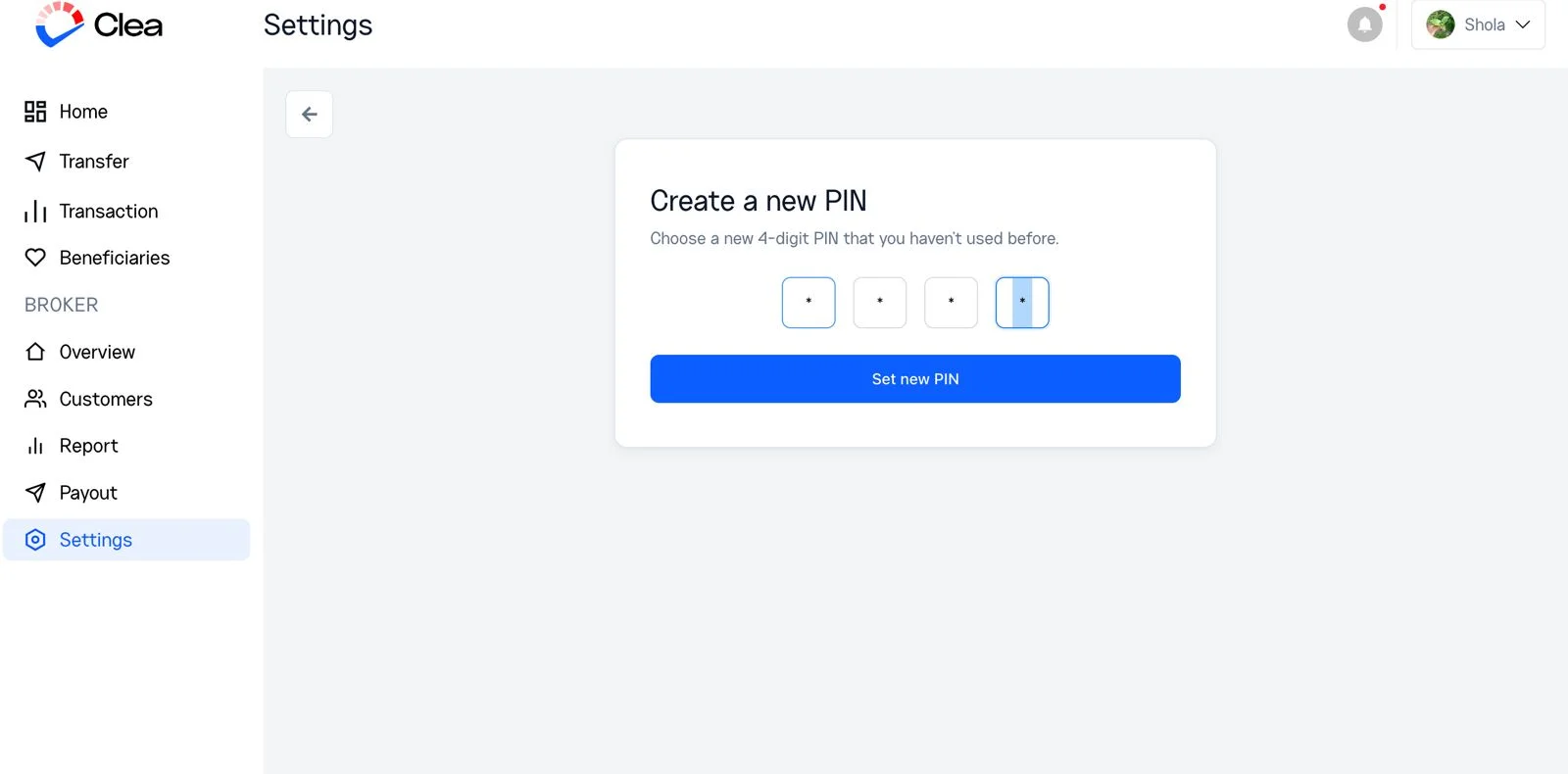
- Create the new PIN you want to use and select Set New PIN. Go with something memorable and private.
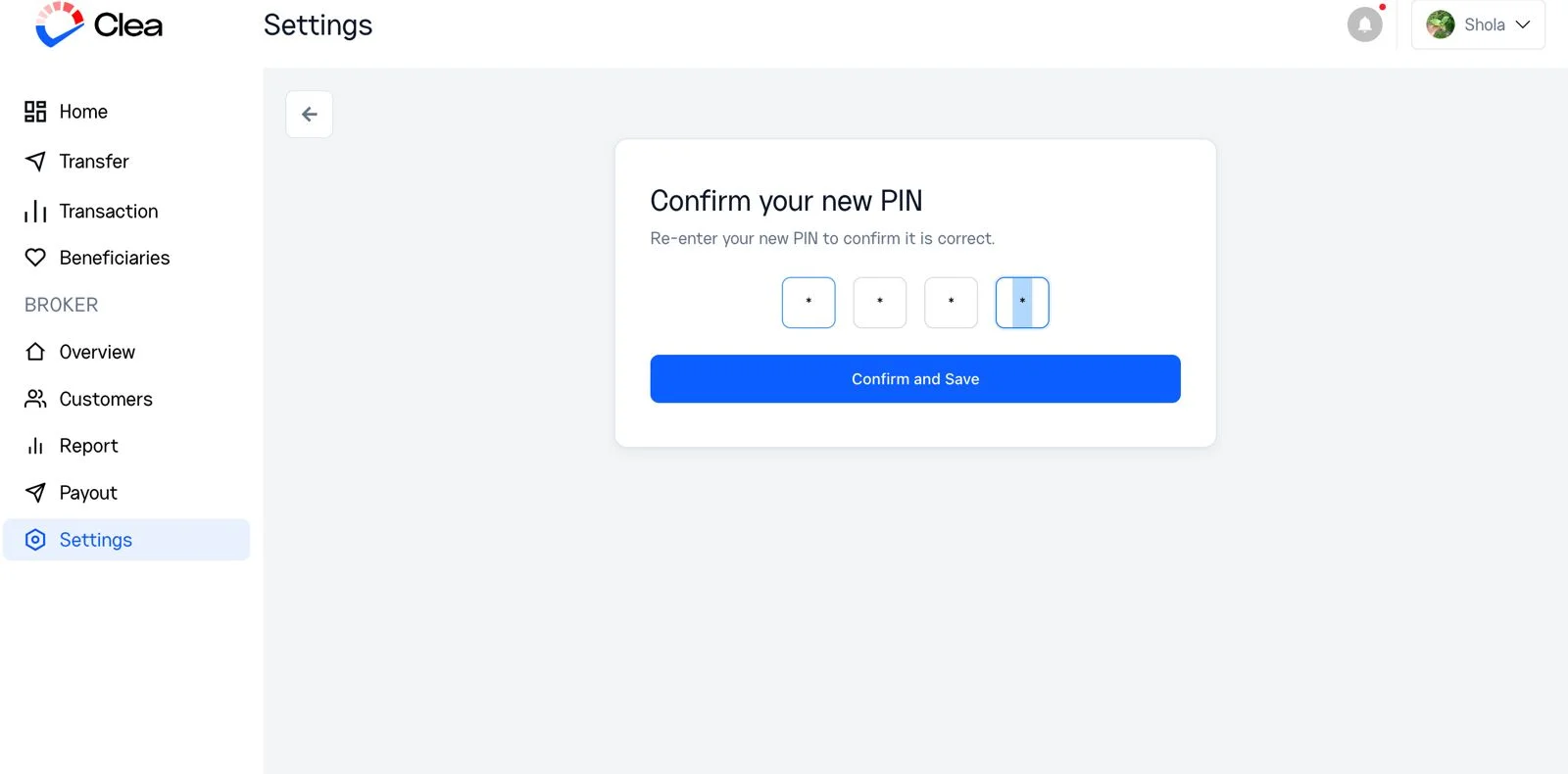
- Re-enter the new pin you just created and click Confirm and Save. Your transaction PIN is now updated across your account.
Transaction PIN Security
Your transaction PIN is confidential and should never be shared with anyone. Clea will never request your PIN via email, phone call, chat, or any other communication channel. If anyone claims to represent Clea and asks for your PIN, do not disclose it. Instead, report the incident to our support team immediately.
To help protect your account, keep your PIN private, avoid storing it in places that may be accessible to others, and update it promptly if you suspect it has been seen, shared, or otherwise compromised.
Frequently Asked Questions
How often should I change my transaction PIN?
There is no set timeframe for changing your transaction PIN. However, for security reasons, we recommend updating it immediately if you suspect it has been compromised or viewed by someone else.
Will I need my new PIN right away?
Yes. Your new PIN becomes active immediately after it is successfully changed. You will need to use the updated PIN for all subsequent transactions.
Can I use the same PIN on both the app and the web?
Your transaction PIN is tied to your account, not the device, so the PIN you set works the same way across the mobile app and the web.
What makes a strong transaction PIN?
Pick something easy for you to recall but hard for anyone else to guess. Steer clear of obvious choices like 1234, 0000, repeated digits, or a date people close to you would know.
Clea asked for my password and my PIN. Is that normal?
Yes. To protect your account, Clea may require both your password and current PIN when you request a PIN change. This verification process helps confirm your identity and prevent unauthorized access.