
Every payment you make on Clea is recorded, giving you a clear view of your account activity whenever you need it. You can check the status of a payment, review its details, and download a receipt, all from one place.
This guide walks you through how to track your payments on Clea, the web platform and mobile app, including how to search for specific payments, view transaction details, and understand each payment status.
Track Your Payments on the Clea Web Platform
Step 1 – Locate Your Payment History
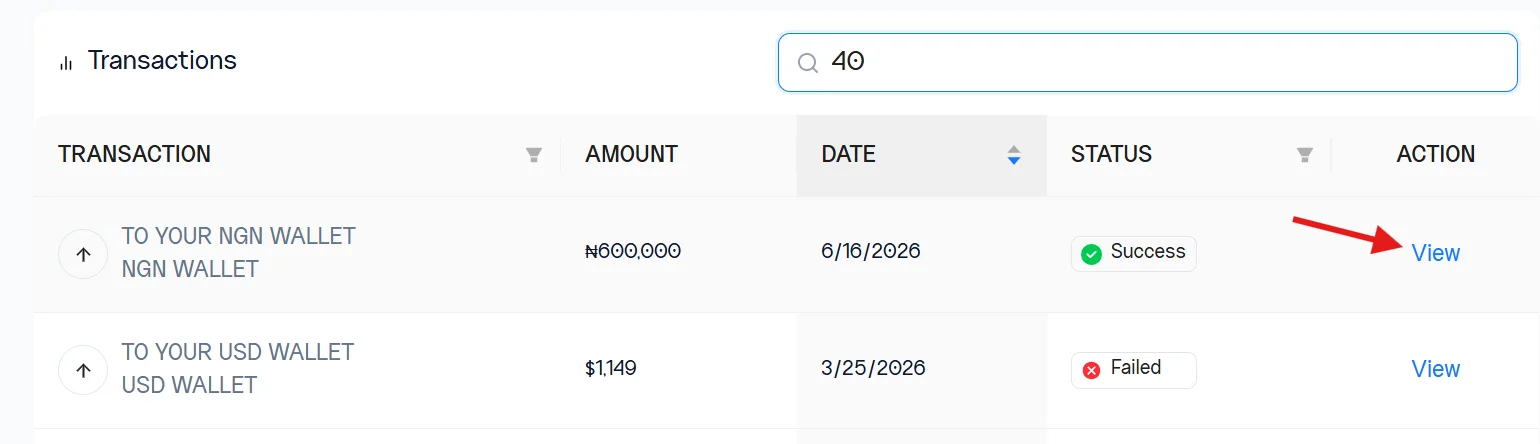
Sign in to your Clea account and select Transactions from the navigation menu.
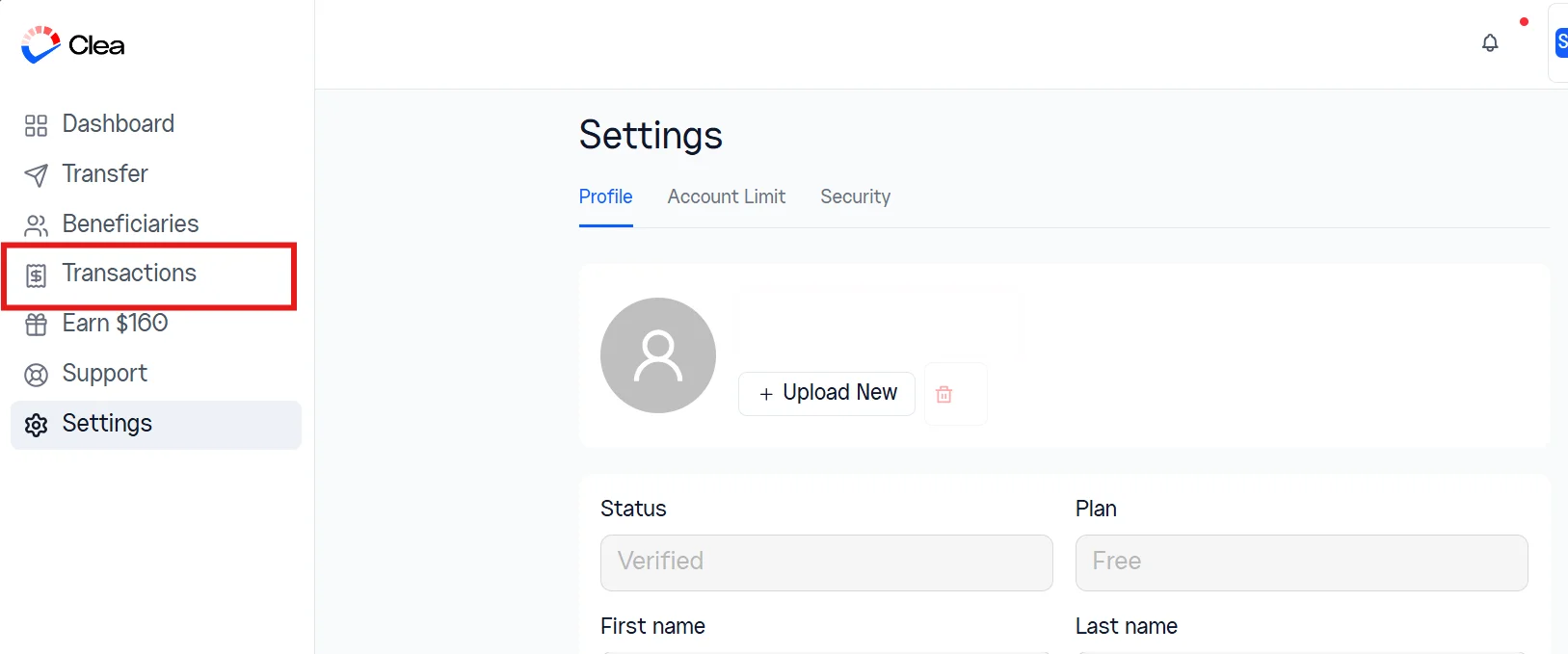
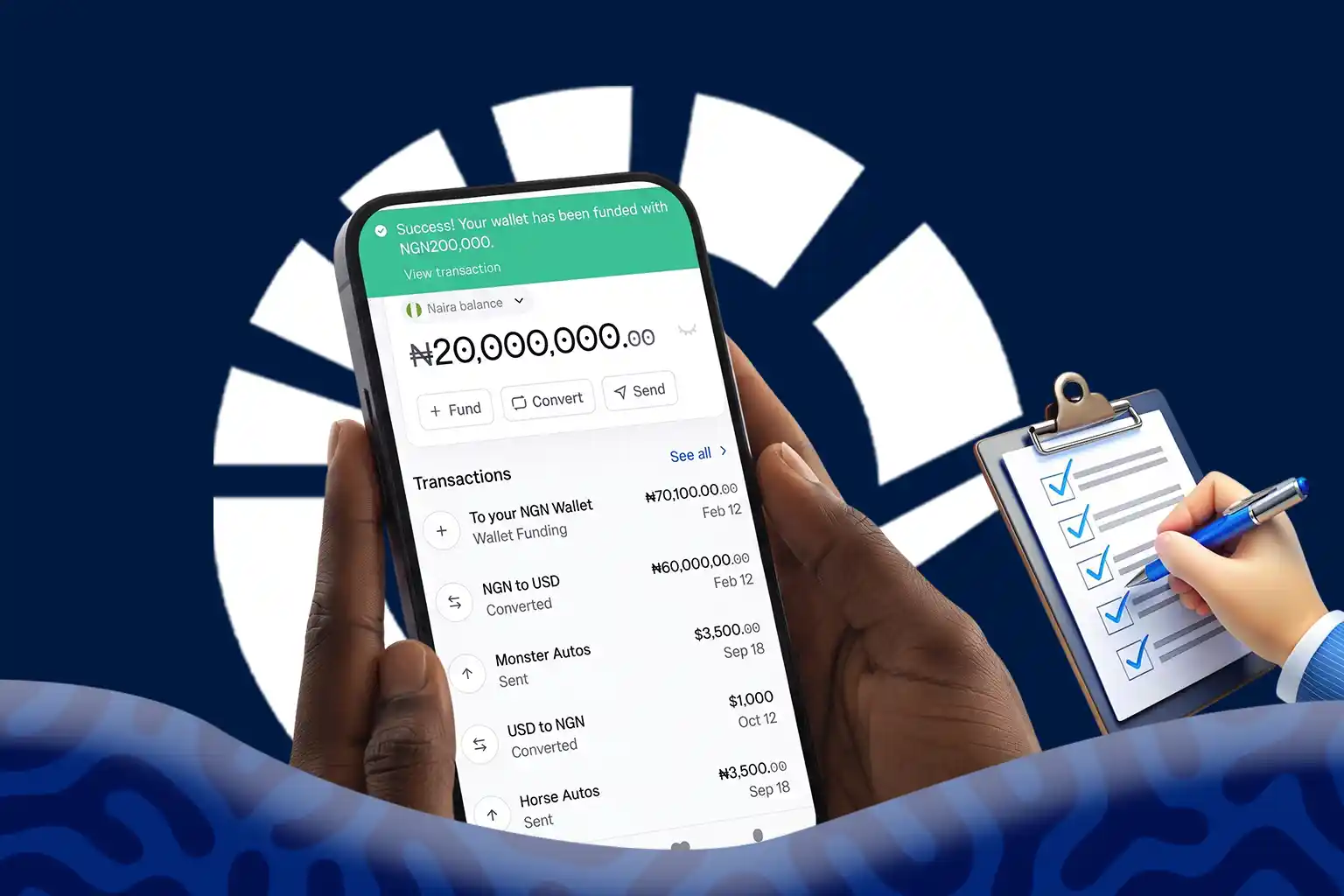
The transactions page contains a complete record of every payment associated with your account. Each transaction is listed with its recipient, date, amount, and current status, making it easy to review your payment activity.
Step 2 – Filter Your Payment History
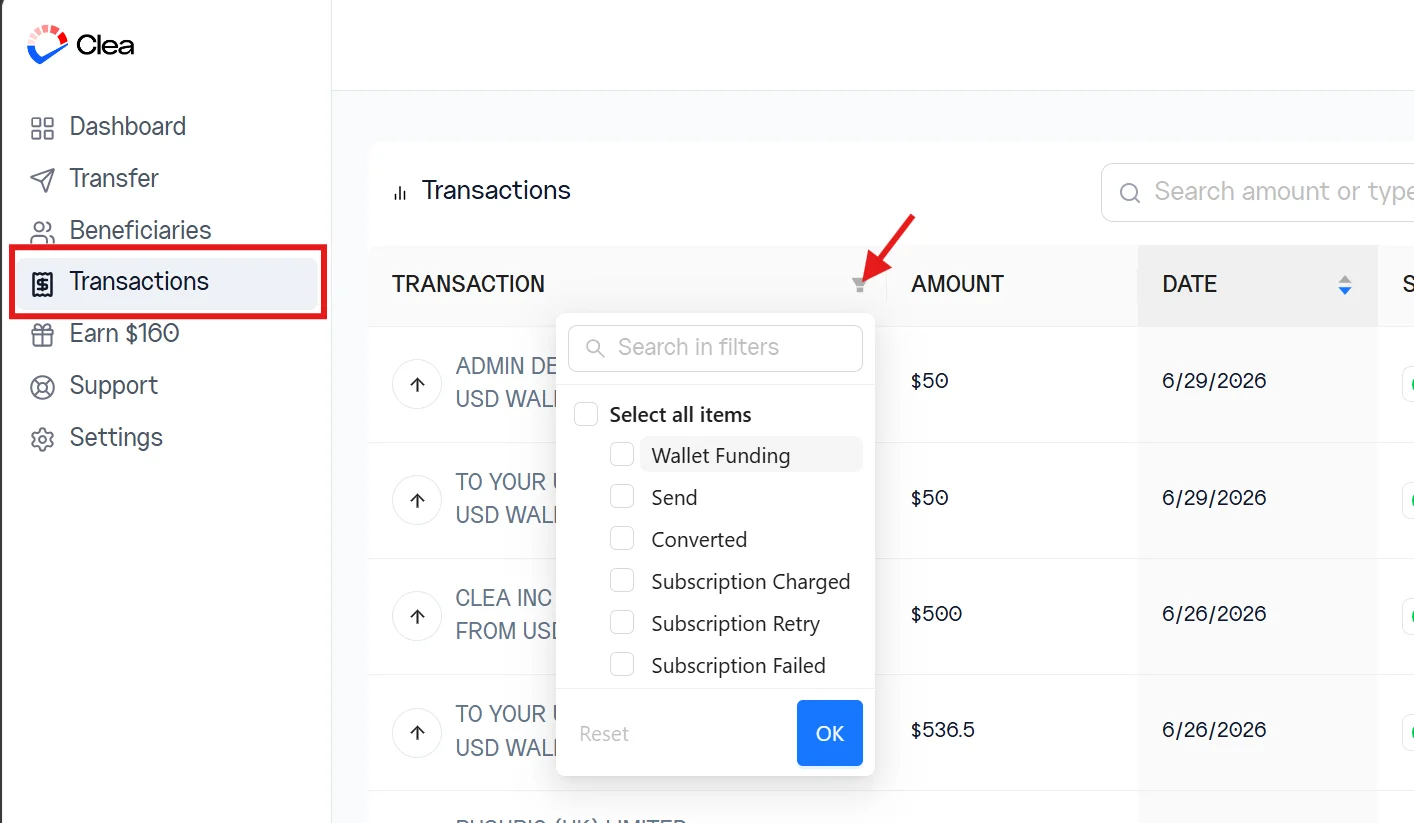
If you have a long list of transactions, use the available filters to quickly find the payment you’re looking for.
Select the filter icon, then choose a transaction type, such as Wallet Funding, Conversion, Sent Payment, or Subscription Payment.
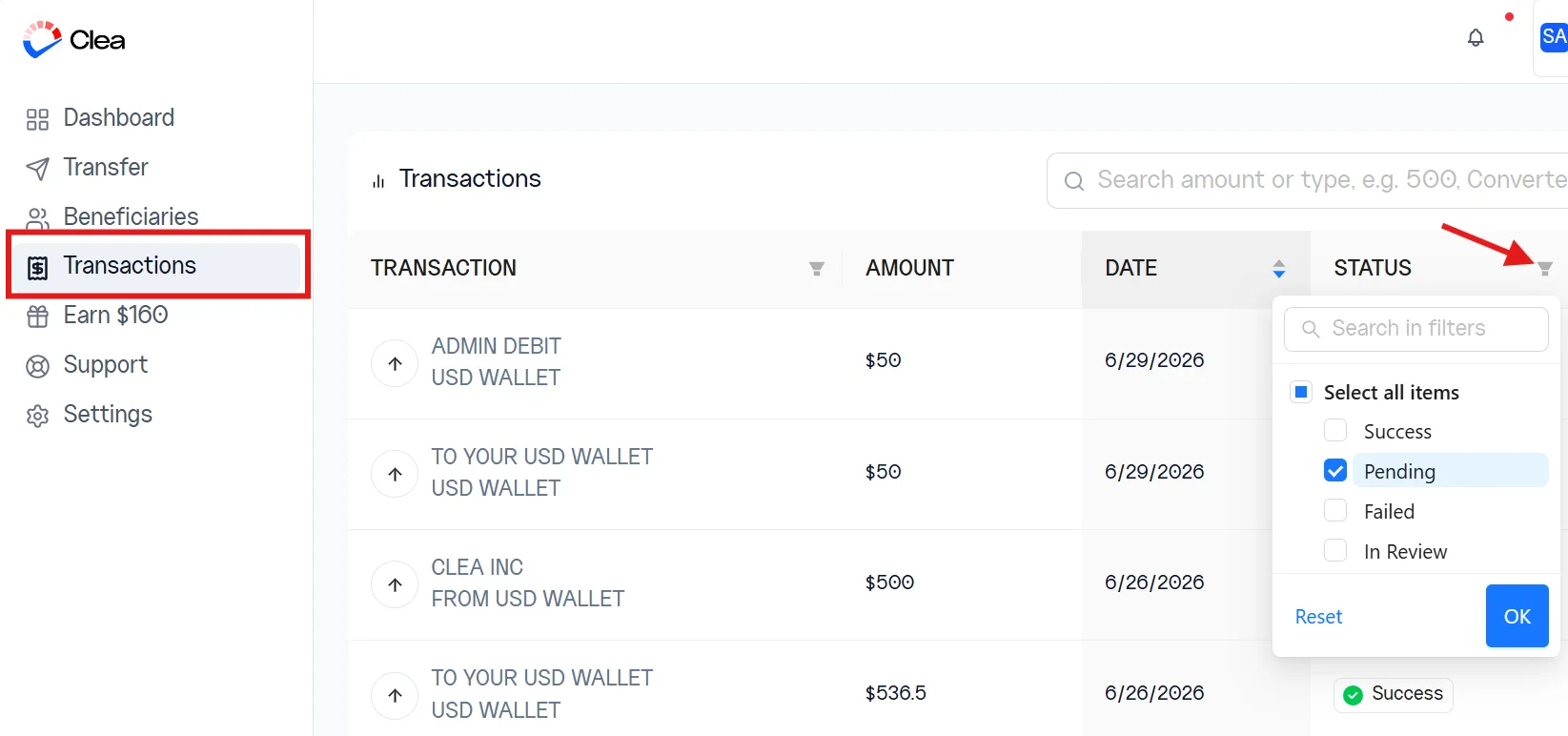
You can also filter by payment status, including Pending, Successful, Failed, or In Review, to narrow your results further.
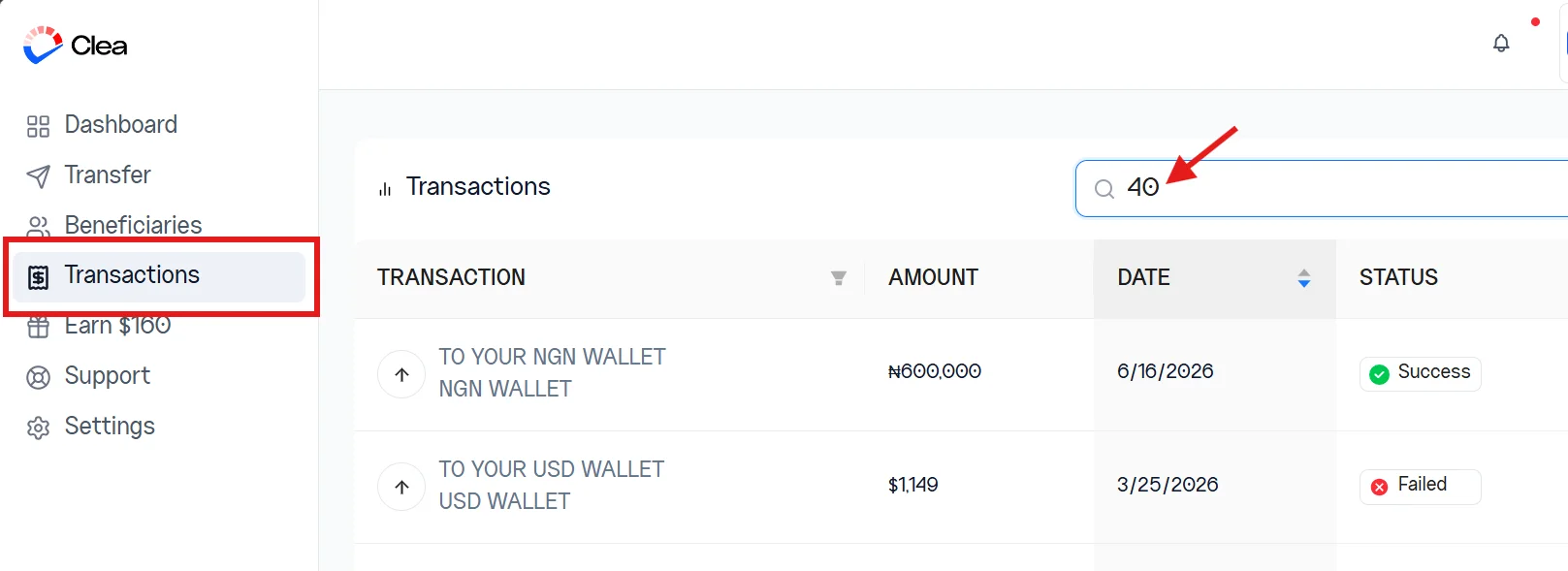
If you already know part of the transaction details, use the search bar to search by amount or keywords such as Convert or Refund.
Step 3 – Check the Payment Details
Select View next to the transaction you want to review.
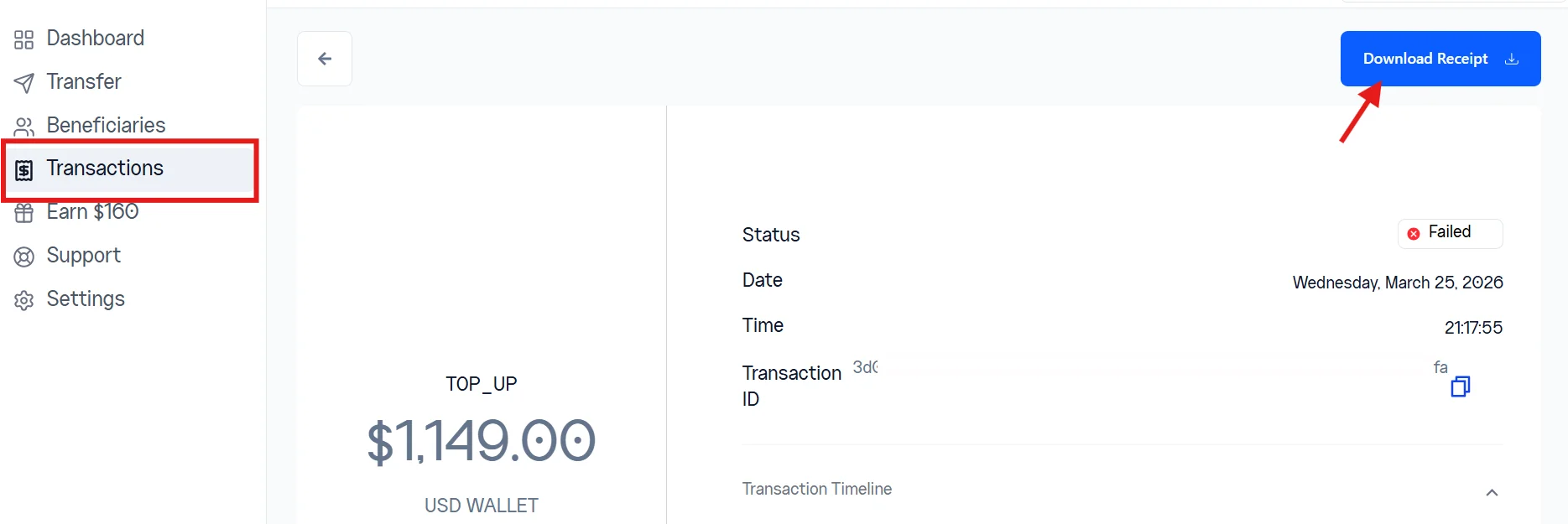
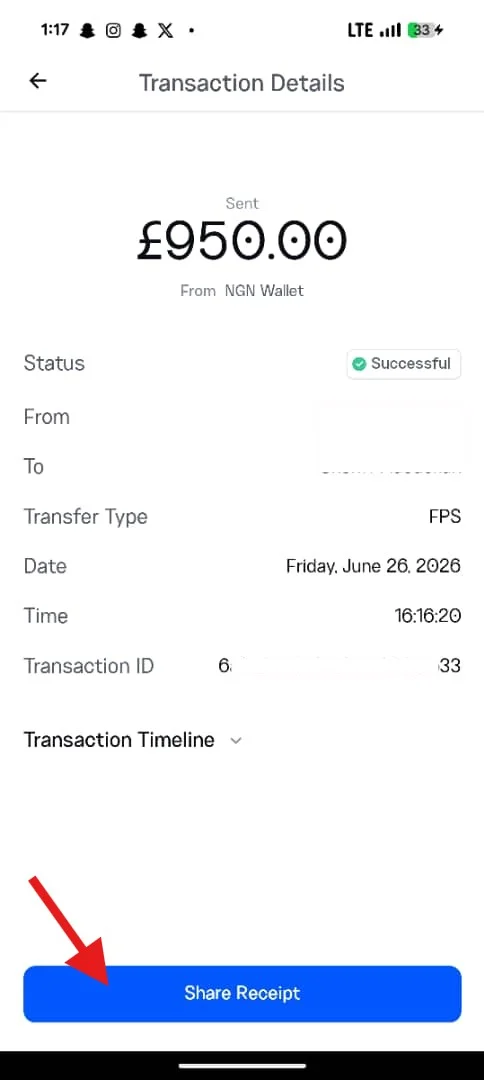
The transaction details page provides additional information, including the payment timeline, transaction date and time, current status, and unique transaction ID. Keep the transaction ID handy if you need to contact Clea Support about a specific payment.
Step 4 – Get Your Payment Receipt
Need a copy of your payment confirmation? Select Download Receipt to save a receipt directly to your device. You can use it for your records or share it with a recipient when needed.
How to View and Monitor Your Payments on the Clea Mobile App
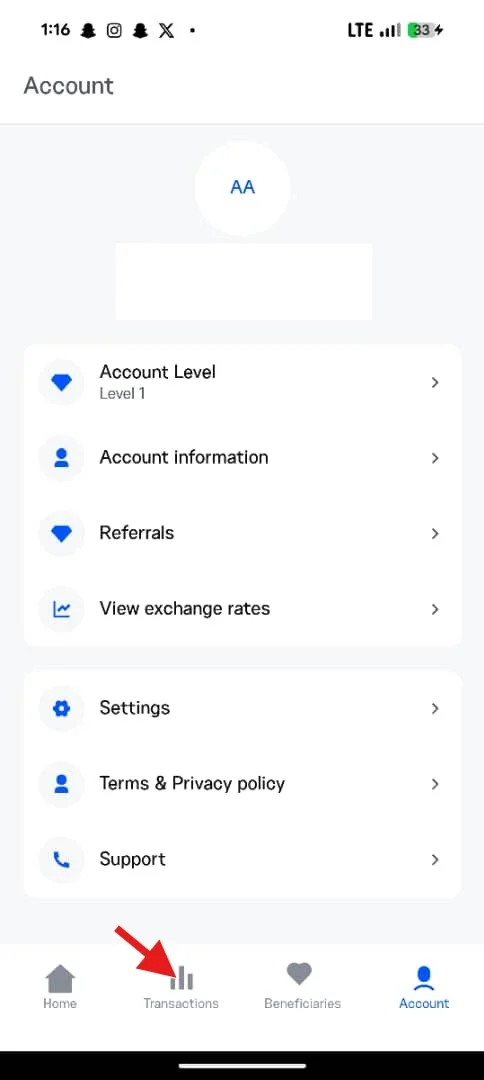
Tracking payments on the Clea mobile app follows the same process as the web platform, with all your transactions available from the transactions screen.
Sign in to the app and go to the Transactions page.
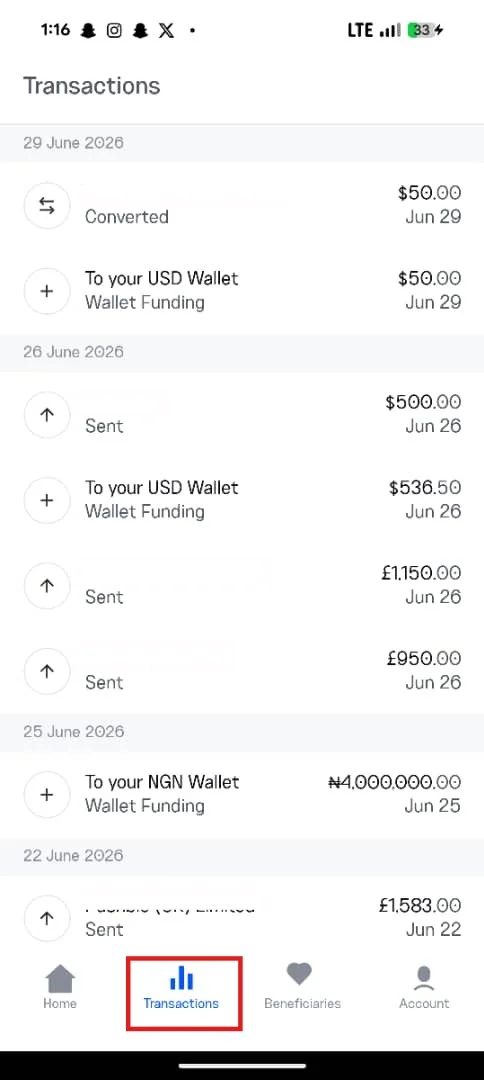
Transactions are grouped by date. Scroll to the date your transaction took place and tap it to view the full details.
To save a copy of the receipt, tap Share Receipt. This downloads the receipt to your mobile phone.
What Your Payment Status Means
| Status | Description |
| Successful | The payment has been completed successfully. |
| Pending | The payment is still being processed. No action is needed unless it remains in this state longer than expected. |
| Failed | The payment couldn’t be completed. Review the transaction details or contact support if you need help. |
| Cancelled | The payment was cancelled before processing was completed. |
| Refunded | The payment has been reversed, and the funds have been returned to your Clea wallet. |
Frequently Asked Questions
My payment history isn’t loading. What should I do?
Refresh the page if you’re using the web platform, or update the app to the latest version if you’re using mobile. If the issue persists, contact Clea Support.
Why did my payment fail?
A few common causes include insufficient funds, a network interruption during the transaction, or an issue with the receiving account. Check the transaction details for more specific information, or reach out to Clea Support if it’s unclear.
How long does a pending payment take to process?
Processing times vary depending on the type of transaction. If a payment stays pending for longer than expected, contact Clea Support with the transaction ID for an update.
Can I get a receipt for an old transaction?
Yes. Every transaction in your history has a downloadable receipt. Just open it and click Download.
What happens to my money if a payment fails or is cancelled?
If a payment fails or is cancelled, the funds are typically returned to your Clea wallet. You can confirm this by checking your wallet balance and reviewing the transaction status.