
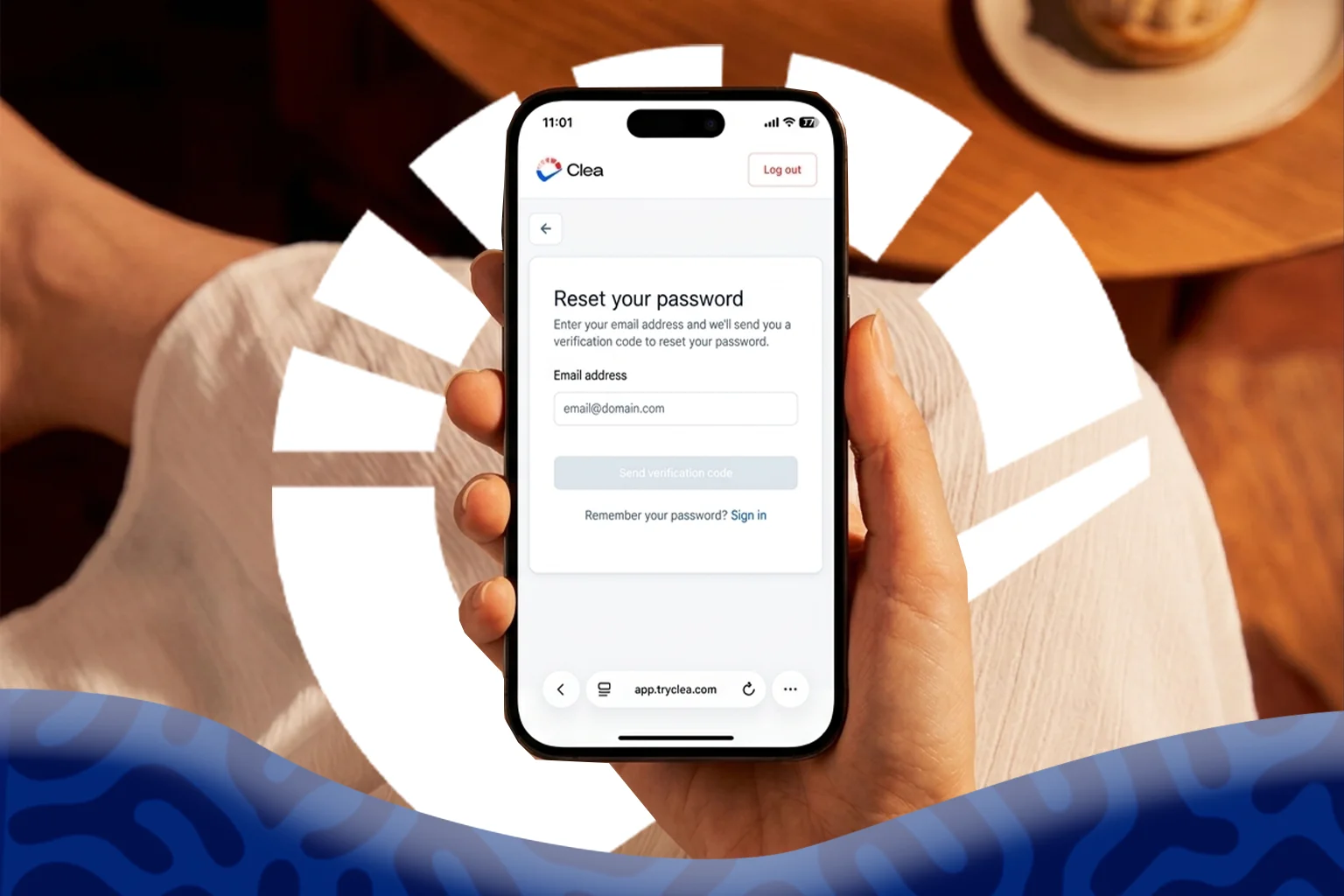
Forgetting your password is one of those things that happens to everyone, especially when you’re juggling multiple tools for work and everyday transactions. If you’re trying to get back into your account, you don’t need to contact support.
This guide explains how to reset your Clea password in just a few simple steps.
How to Reset Your Clea password on the Web
If you usually log in through your browser, follow these steps.
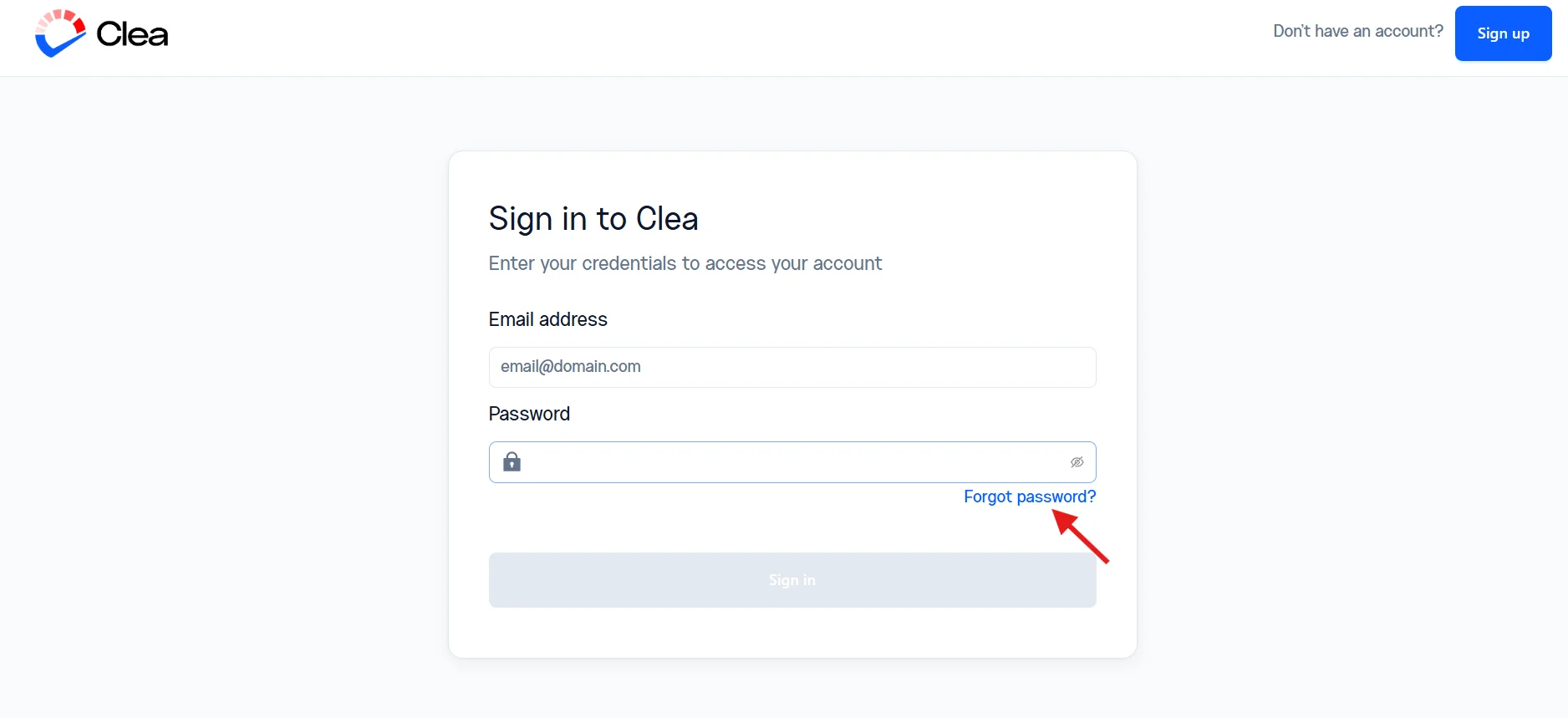
- Go to the Clea login page.
- Click Forgot password.
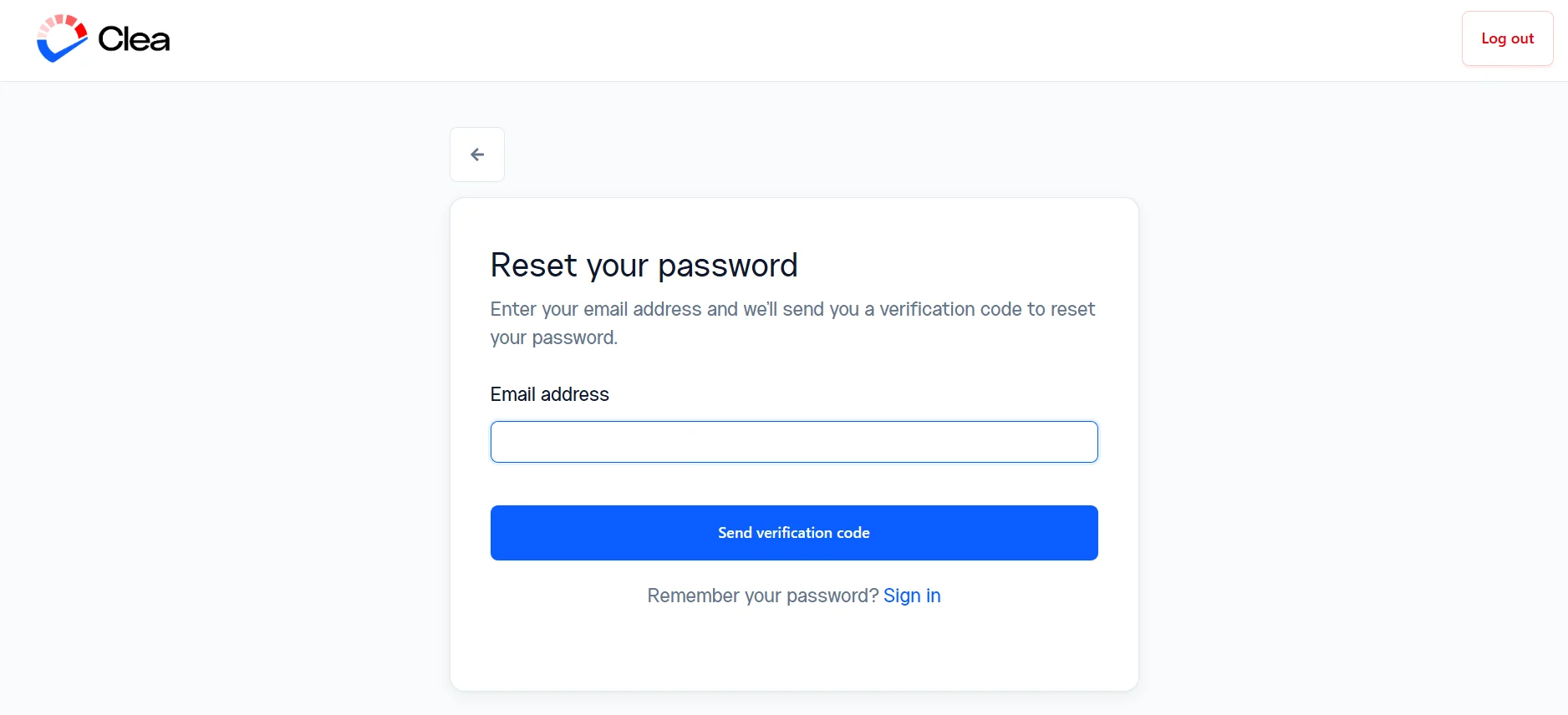
- Enter the email address you used to register your Clea account, then click Send verification code.
- Open your email and find the verification code Clea sent you.
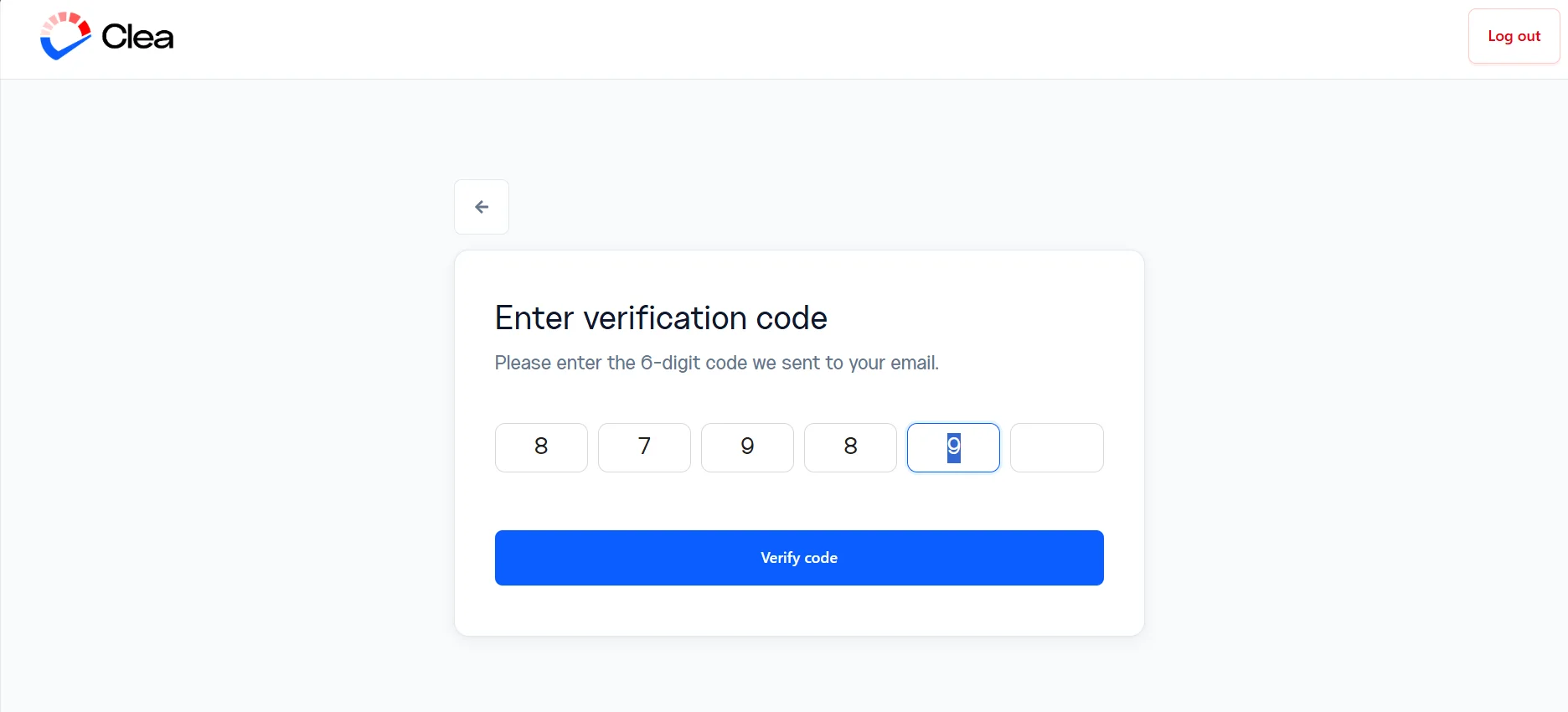
- Enter the code on the reset page and click Verify code. You’ll be taken to a page where you can set a new password.
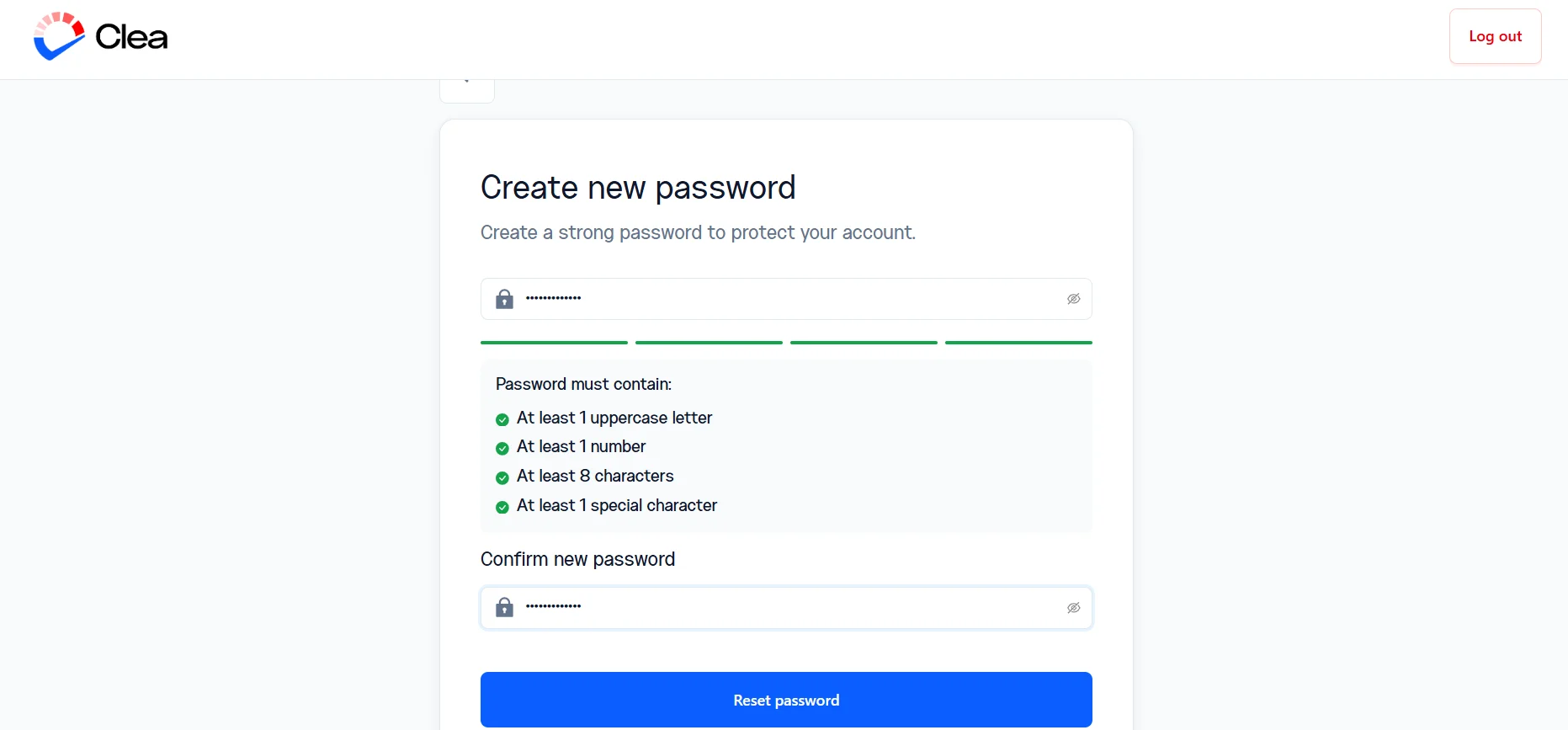
- Create your new password following the requirements and then select Reset Password.
- When the reset is complete, a success page appears.
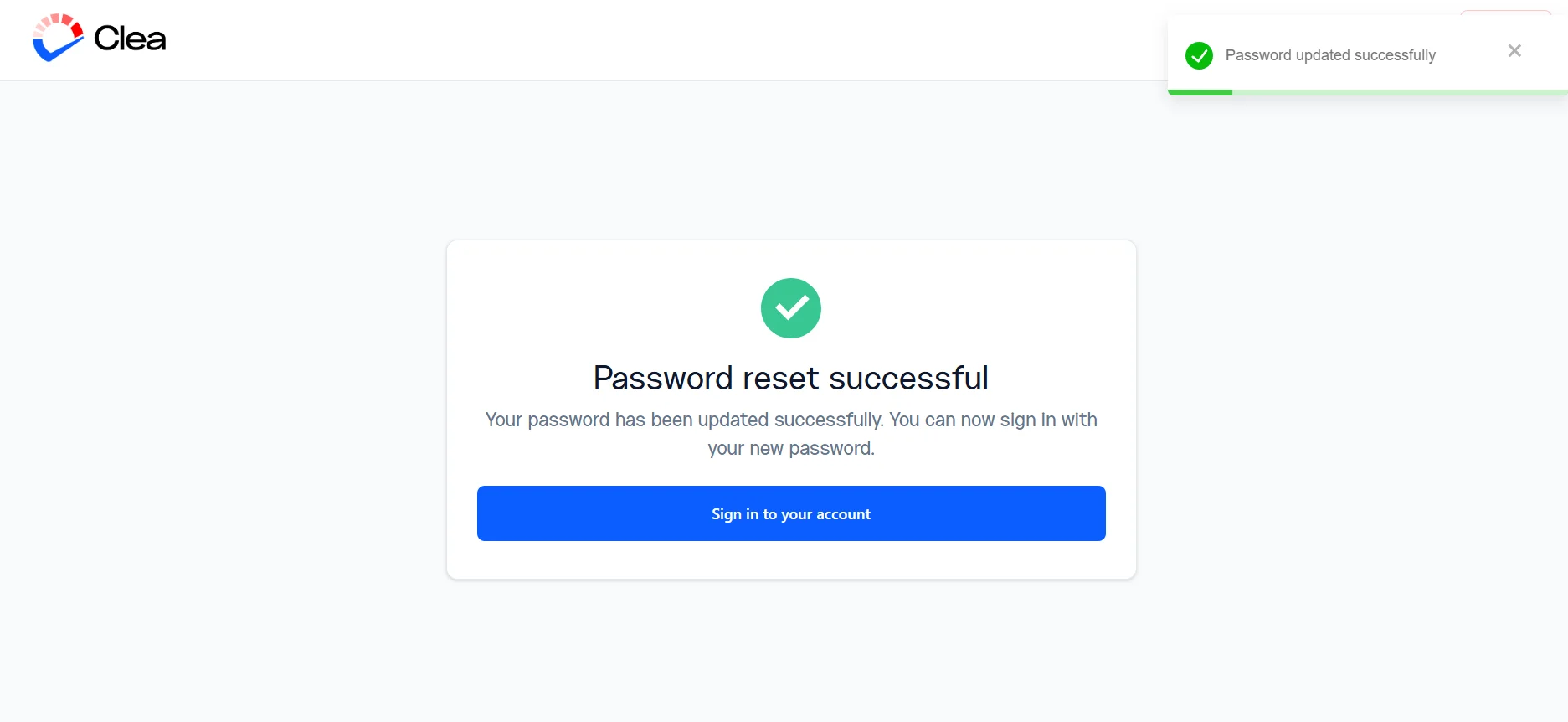
- Click Sign in to your account and log in with your new password.
Clea password requirements
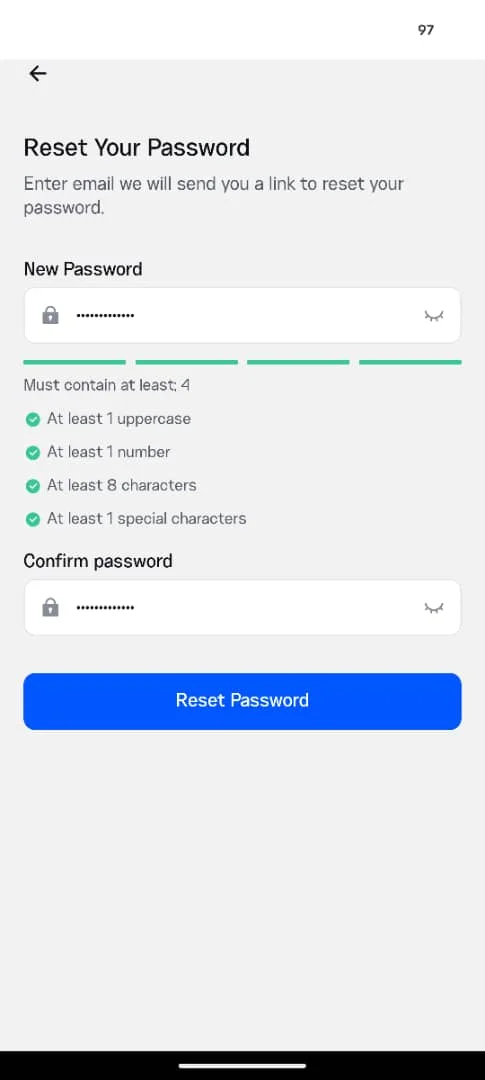
Your new password must contain all four of the following.
- At least 8 characters
- At least 1 uppercase letter
- At least 1 number
- At least 1 special character
How to Reset Your Clea Password on the App
If you use the Clea mobile app, the process is just as quick.
- Open the app, tap Sign in
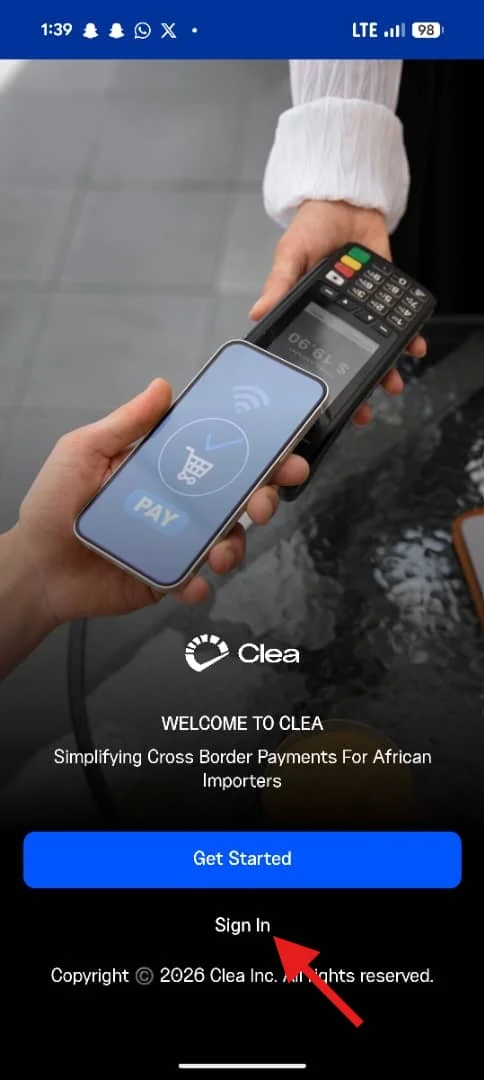
- Then tap Forgot password.
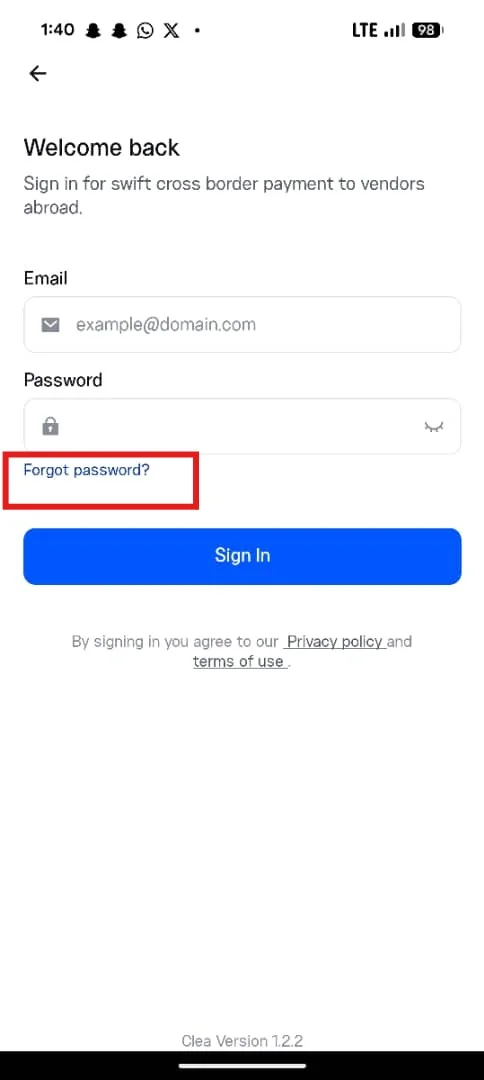
- Enter the email address linked to your Clea account and tap Continue.
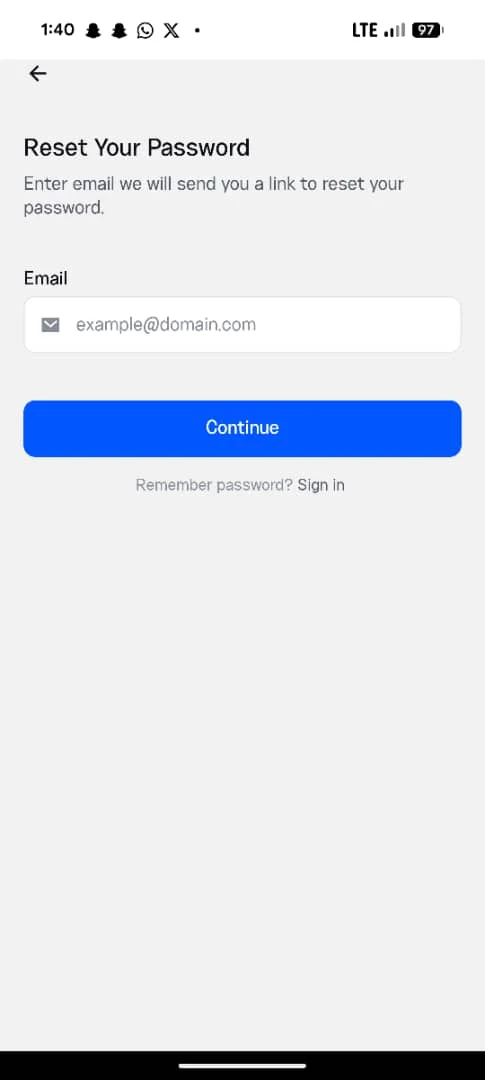
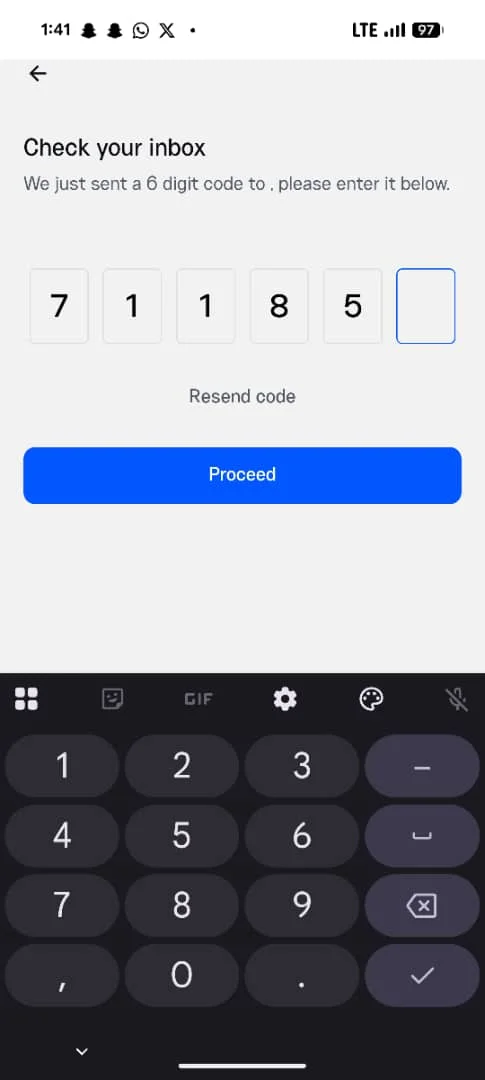
- Check your email for the verification code and enter it. If it has not arrived, tap Resend code. Once you’ve entered the code, tap Proceed.
- Type in your new password, making sure it meets the requirements, then tap Reset password.
- Sign in to your account using the password you just created.
What To Do If Your Verification Code Does Not Arrive
Verification codes usually arrive within a minute. If yours is taking longer, check your spam or promotions folder first, since automated emails sometimes land there. Confirm that you entered the same email address you registered with, because a code will only be sent to a recognised account. If you still don’t see it after a few minutes, use the resend option, and avoid requesting several codes in a row.
Tips for Choosing a Strong Password
A strong password does more than tick the boxes on the screen. Avoid reusing a password from another account, and stay away from obvious choices like your name, your birth year, or simple number sequences. A short phrase broken up with a number and a special character is easier to remember than a random string of letters and still hard to guess. If keeping track of passwords is a struggle, a password manager can store them securely for you.
Frequently Asked Questions
Can I reset my Clea password without access to my email?
No. The verification code is sent to the email address registered to your account, so you need access to that inbox to complete the reset. If you’ve lost access to that email entirely, reach out to Clea support for help.
Why does Clea say my new password is invalid?
This almost always means the password is missing one of the four requirements. Check that it has at least eight characters, one uppercase letter, one number, and one special character.
Do I need to reset my password on both the web and the app?
No. Your password is tied to your account, not the device. Once you reset it, the new password works everywhere you sign in to Clea.